This guide will help you improve your site on google PageSpeed Insights. Please do following steps below:
1/ Optimized images:
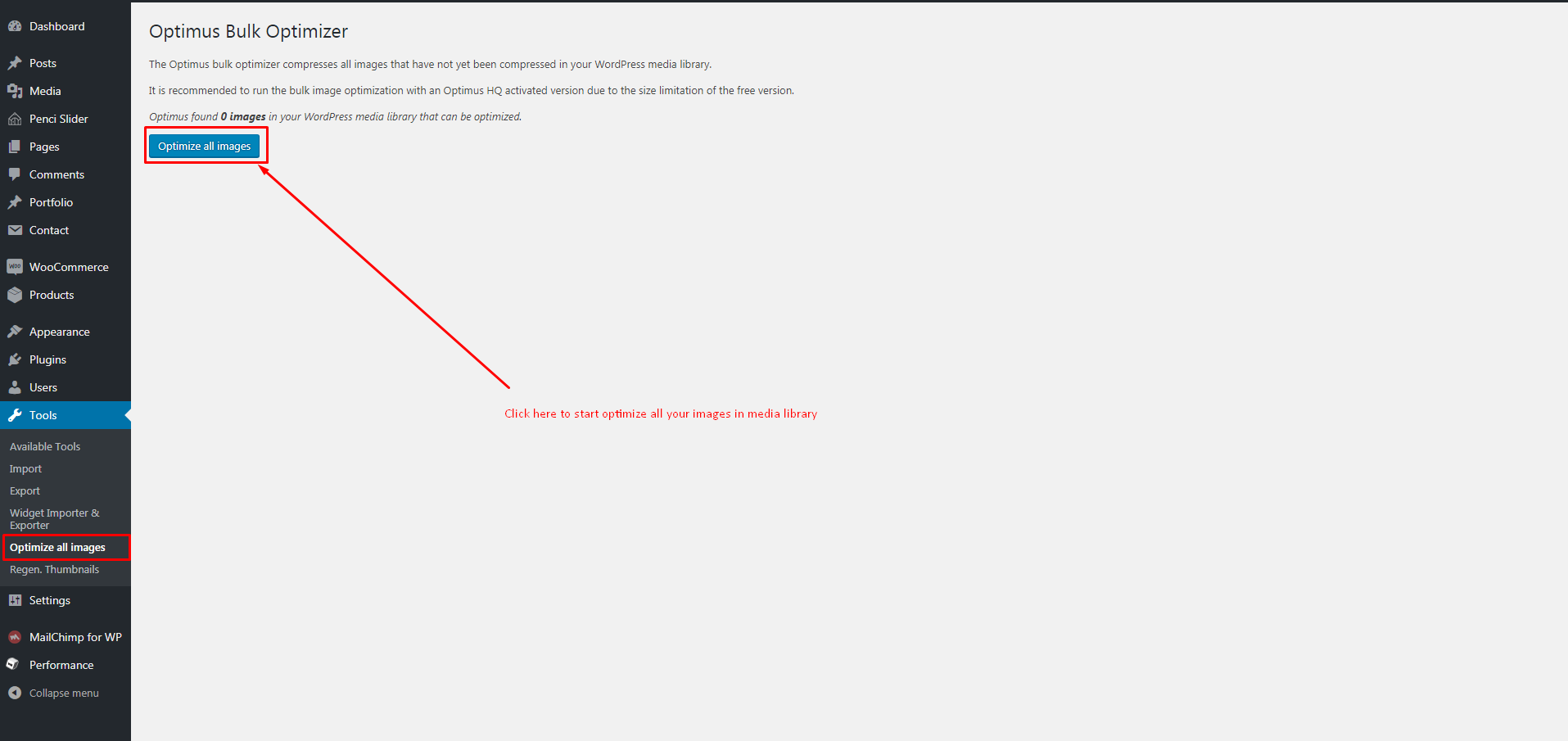
For all images display like the posts thumbnail, you can optimize it by use plugin Optimus – WordPress Image Optimizer - this plugin reduces the file size of uploaded media files automatically. Depending on the image and format, reductions in size of up to 70% are possible.
After installed this plugin, go to Tools > Optimize all images and click button "Optimize all images"
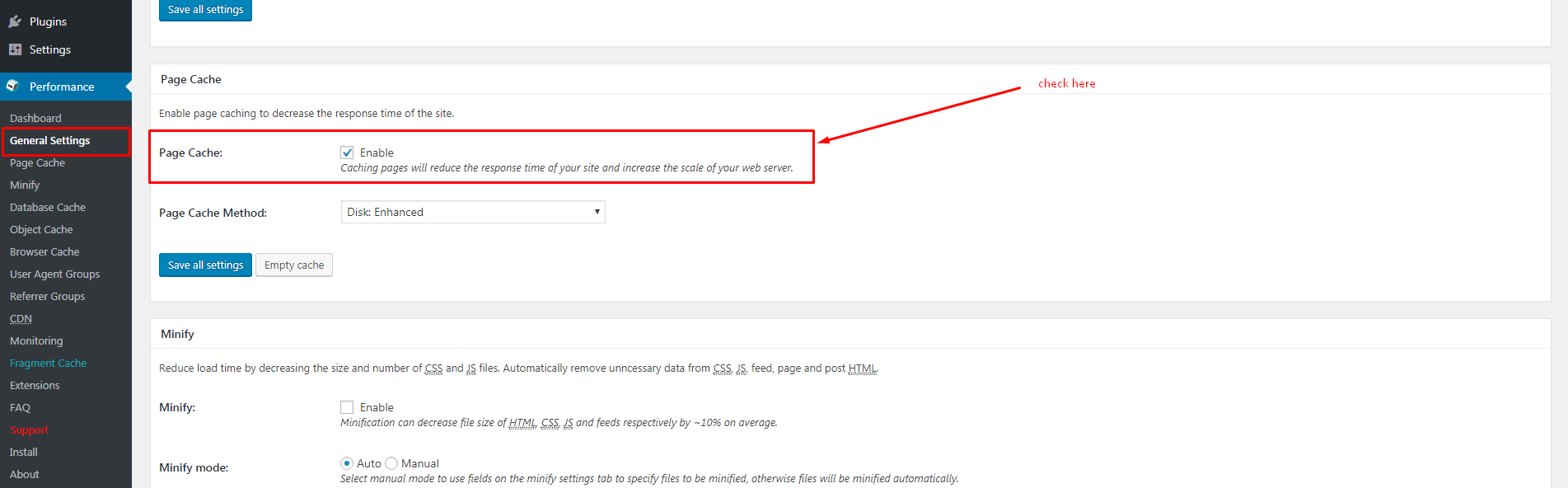
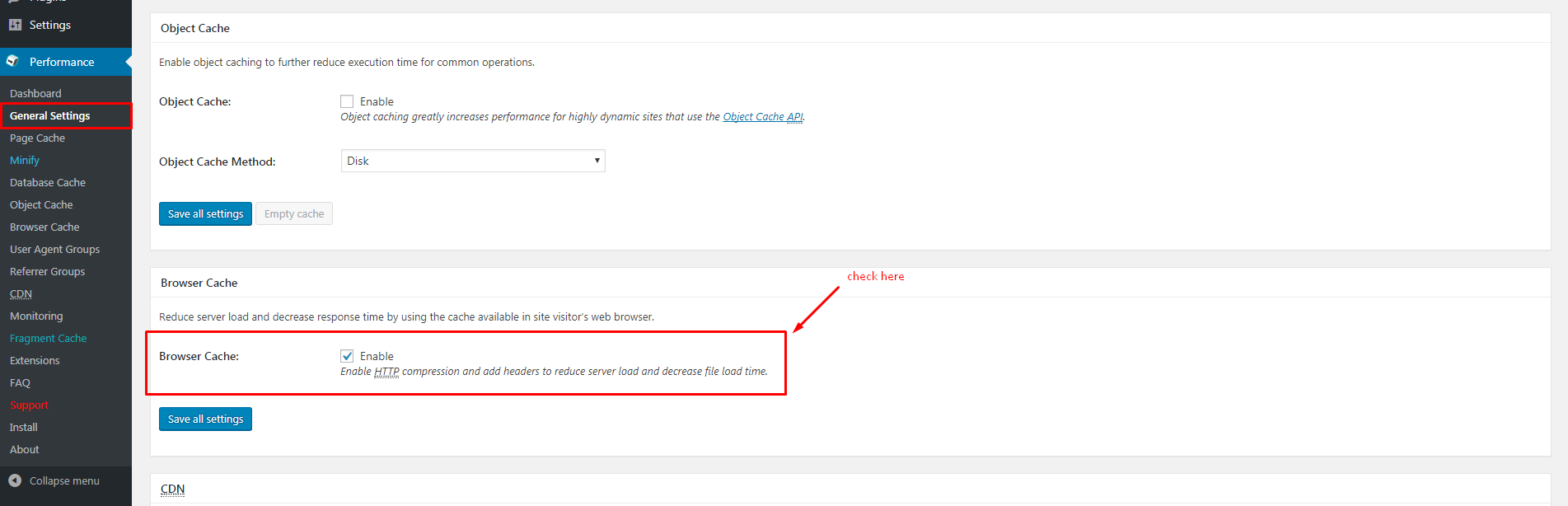
2/ Use W3 Total Cache for Leverage browser caching & create a cache to make your site faster.
W3 Total Cache is a power plugin to make your site load faster, also it can make your site have better scrore on google page speed insights.
Let's install & activate this plugin, after that, go to admin page > Performance > General Settings and make your config look like this image:
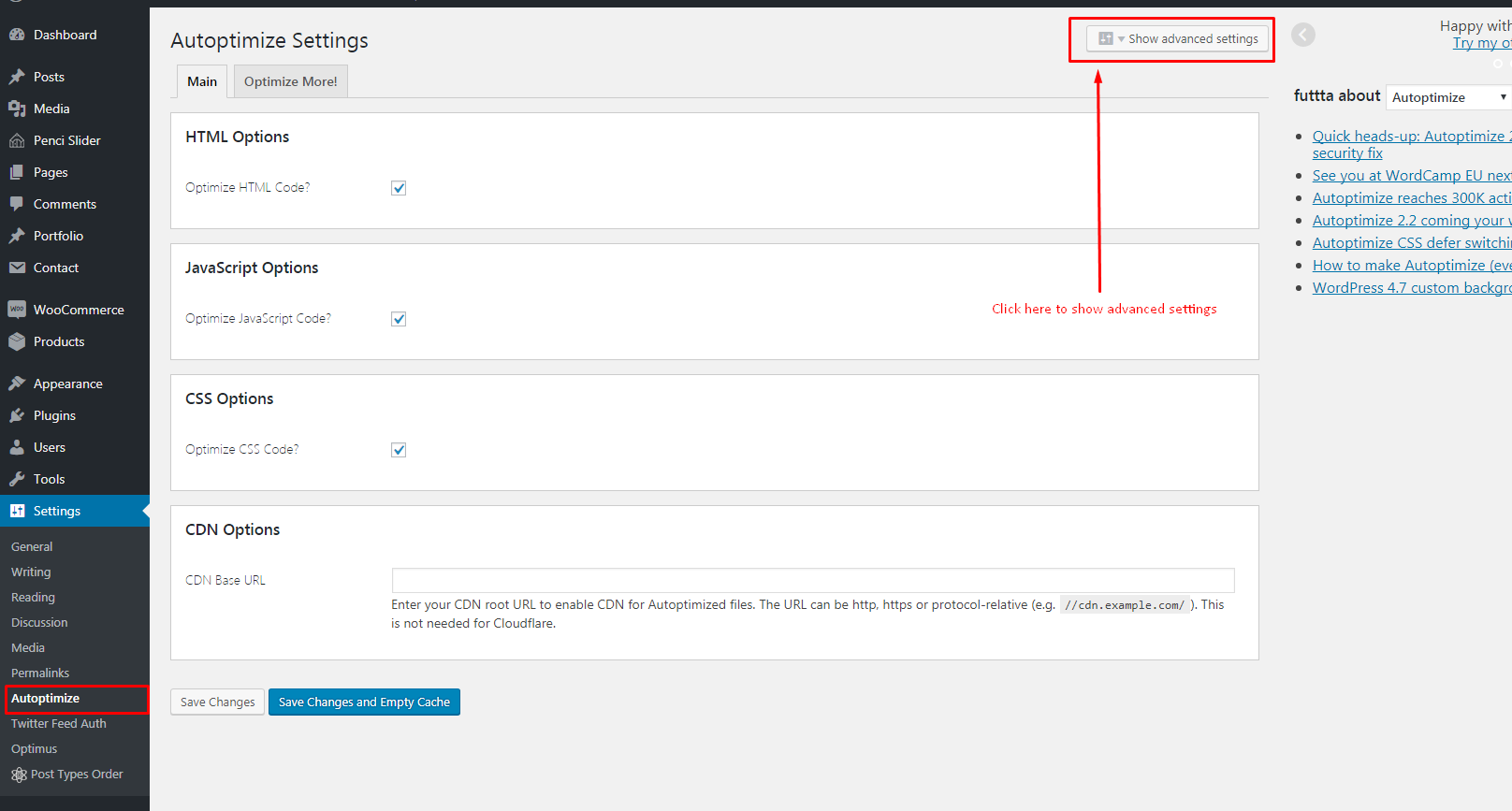
3/ Use Autoptimize plugin to Minify Javascript and CSS
First, Please install plugin Autoptimize
After installed this plugin, go to Settings > Autoptimize and do following the images below:
That's all we're using for our demos.
Everything else, our themes will handle by Lazyload images & some functions from itseft.
Note Important:
- If you changed something and you see the front-end doesn't update - you need to clearly all the caches ( clear all the caches from W3 Total Cache & Autoptimize )
- The speed of your site is also based on the hosting you are using - If you're using a bad hosting, of course your site can't load fast with other sites using Soledad theme.