16:10 Image (download from Admin › News & Knowledge)
Understand more about variables in Google Tag Manager

The power of Google Tag Manageris extremely powerful for web administrators and marketers. I've also explained this in great detail in the articleGoogle Tag Manager setup guideIf you're not clear on it, you can read it again. The power of Google Tag Manager is immense, but hidden within that power is something worth mentioning: variables. It's the variables in Google Tag Manager that help create triggers and build tags with flexible customization levels. In particular, it also helps improve performance and save time if you dive deep into JavaScript variables.
 Understanding variables helps you use Google Tag Manager more effectively
In this article, I'll help you understand more aboutvariables in Google Tag Managerso you know what the function of variables is and which variable to use for which task appropriately and accurately.
Understanding variables helps you use Google Tag Manager more effectively
In this article, I'll help you understand more aboutvariables in Google Tag Managerso you know what the function of variables is and which variable to use for which task appropriately and accurately.
 To enable the available variables, click the Configure button and check the variables you want to enable as follows:
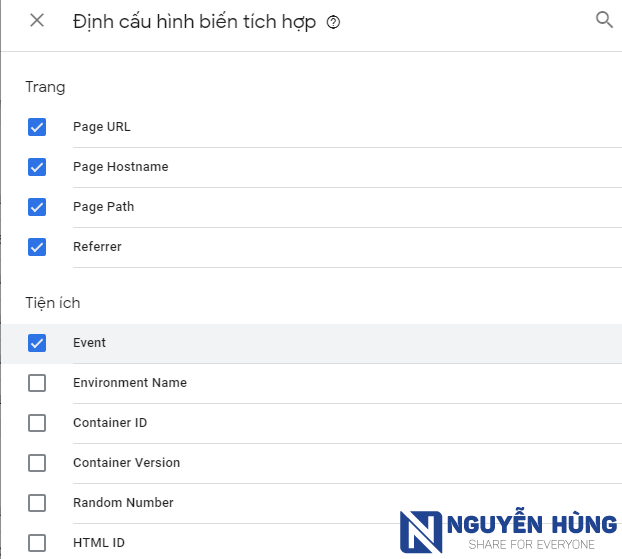 Below I will explain in detail the purpose of each variable so you know which ones to enable for your needs.
 Next, click Select variable type to get started… to choose the appropriate variable types.
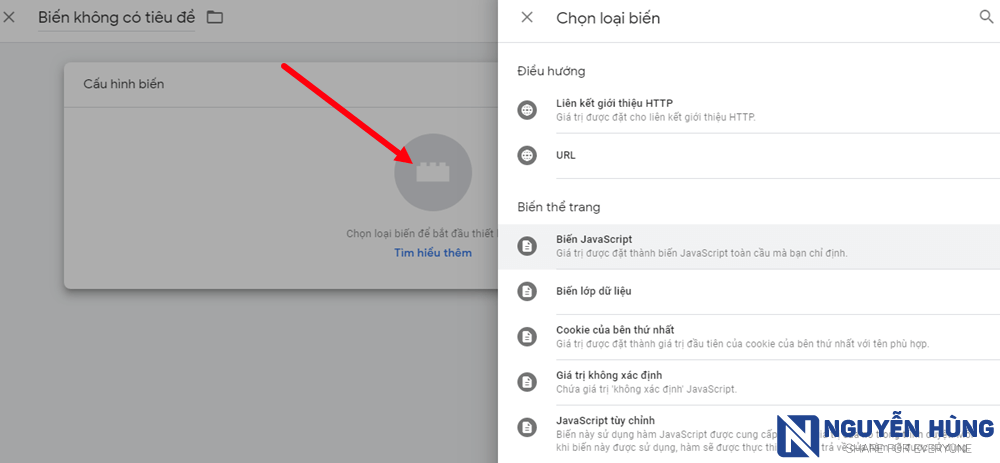 Here, there will be many variable types for you to choose from. However, what is the function of each variable type and which one should you select to suit your needs? If you're not sure, let's explore the information we provide below.
Understanding variables helps you use Google Tag Manager more effectivelyTypes of variables in Google Tag Manager
1. Built-in variables (available in GTM)
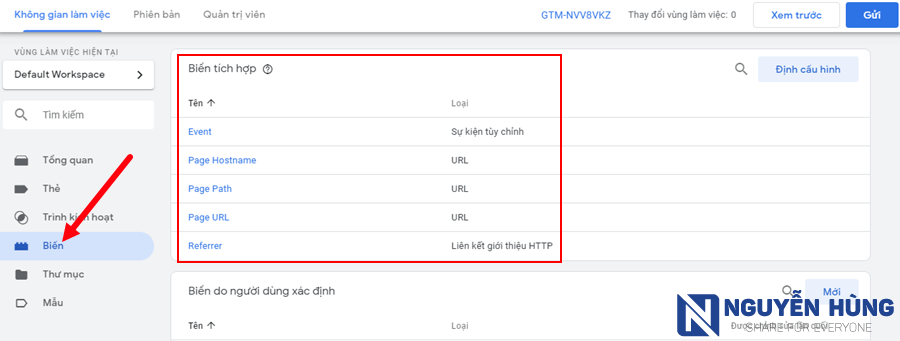
By default, Google Tag Manager comes with commonly used variables and the most basic ones. However, only some variables are enabled, so if you want to use more, you need to enable them. To see which built-in variables are currently enabled, go to the Variables section and look in the Built-in Variables section as follows:Trang
- Page URL: Returns a string containing the complete URL path. (
https://nguyenhung.net/huong-dan-cai-google-tag-manager.html?utm_source=google) - Page Hostname: Returns a string containing the domain name of the current page. (
nguyenhung.net) - Page Path: Returns a string of the relative path after the domain name of the current page. (
huong-dan-cai-google-tag-manager.html) - Referrer: Returns a string of the path of the previous page that brought the reader to the current page. (
https://nguyenhung.net/thu-thuat)
Utilities
- Event: Returns a string containing the name of the "event" key in
dataLayer. - Environment Name: Returns the name of the environment being previewed (via shared preview link). You can view this information in the Environment section under the Admin tab.
- Container ID: Returns a string containing the ID of the container (GTM-XXXXXXX)
- Container Version: Returns a string containing the version information of the current container.
- Random Number: Returns a random number.
- HTML ID: Returns the identifier information of the custom HTML tag. Used together with tag sequence.
Error
- Error Message: Returns a string containing the error message sent by the JavaScript Error trigger.
- Error URL: Returns a string containing the URL where the error occurred sent by the JavaScript Error trigger.
- Error Line: Returns a string containing the line number in the file where the error occurred sent by the JavaScript Error trigger.
- Debug Mode: Returns true or false depending on whether the user is in debug mode.
Click Count
- Click Element: Returns a string containing the HTML element where the click occurred.
- Click Classes: Returns a string containing the class of the DOM element where the click occurred.
- Click ID: Returns a string containing the ID of the DOM element where the click occurred.
- Click Target: Returns a string containing the value in the attribute
target. - Click URL: Returns a string containing the value in the attribute
hreforaction. - Click Text: Returns a string containing the value in the attribute
textContent / innerText.
Form
- Form Element
- Form Classes
- Form ID
- Form Target
- Form URL
- Form Text
History
- New History Fragment: Returns a string containing the URL of the page after the history event.
- Old History Fragment: Returns a string containing the URL of the page before the history event.
- New History State: Returns a string containing the new history state after the history event occurs.
- Old History State: Returns a string containing the history state before the history event occurs.
- History Source: Returns a string describing the event that initiated the history change.
Video
- Video Provider: The video service being tracked. Currently only supports Youtube.
- Video Status: Returns the status of the video. Can bestart, pause, buffering, progress or complete.
- Video URL: The value is the URL of the video on Youtube. Example: https://www.youtube.com/watch?v=5V39cdKw9fc
- Video Title: The value will be the title of the embedded video.
- Video Duration: The total duration of the video measured in seconds.
- Video Current Time: The time point measured in seconds at which the event occurs in the video.
- Video Percent: An integer (0-100) representing the percentage of the video being played when the event occurs.
- Video Visible: The value is
trueif the video is displayed in the viewing window andfalseif the video is not displayed in the viewing window.
Scroll
- Scroll Depth Threshold: The value is a number indicating the scroll depth to trigger the trigger. An integer (0-100) with percentage threshold, or a numeric value representing the number of pixels with pixel threshold.
- Scroll Depth Units: Is
pixelorpercentdepending on the type of threshold the trigger is tracking. - Scroll Direction: Is the direction
vertical scrollhayhorizontal scrolldepends on the direction the trigger is monitoring.
Display
- Percent Visible: A numeric value (0-100) indicating the visibility level of the selected element when the trigger is activated.
- On-Screen Duration: A numeric value indicating the number of milliseconds the selected element is displayed when the trigger is activated.
2. User-Defined Variables
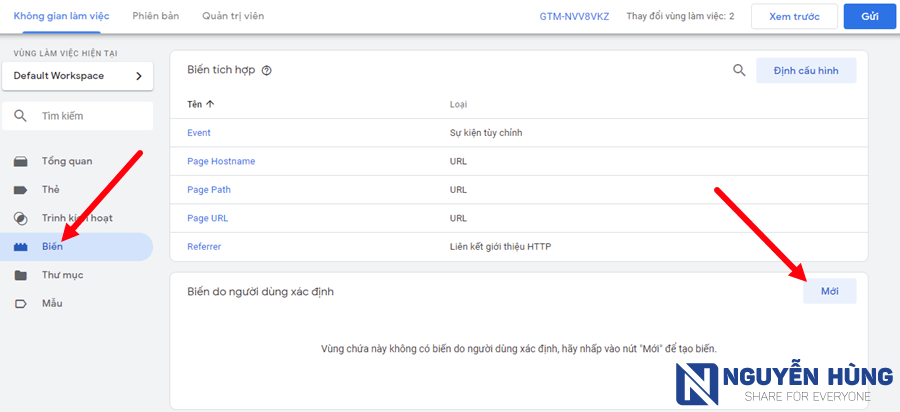
In addition to the built-in variables in Google Tag Manager, you can also create your own custom variables with advanced functionality. To create a custom variable, go to the Variable management section. Then click New in the User-Defined Variables section as follows:Navigation
HTTP Referrer Link: These are components of the URL that brought the user to the current page. Although Google Tag Manager already has a built-in variable of this type, you can create additional ones if you want to display different components of the URL. URL components can be selected as follows:- Full URL: The complete full URL. Example:
https://nguyenhung.net/huong-dan-cai-google-tag-manager.html?utm_source=google - Protocol: The protocol being used by the URL. Example:
httporhttps - Hostname: The URL of the server without the port number. You can check the Remove 'www' option to remove www from the hostname.
- Port: The port number that the URL is using. It is 80 for http protocol or 443 for https protocol if the URL does not have a port number.
- Path: Returns only the path name in the URL.
- Query: Returns the entire query string.
- Fragment: The value of the URL segment that does not contain #
Page Variable
- JavaScript Variable: A JavaScript variable returns the value from the global JavaScript variable you specify. This is NOT the same as a custom JavaScript variable. Use this variable type if you can find the value in the page's source code as a common JavaScript variable.
- Data Layer Variable: The explanation of this variable is quite lengthy and we're not sure how to explain it clearly. You can read more information about the data layer variablehere.
- First-party cookie: The first cookie value from the first party with the domain that the user is using.
- Undefined value: This is a simple variable that returns a value
undefinedof JavaScript. - Custom JavaScript: This is a powerful variable if you know how to leverage it. The returned value is the result of JavaScript.
Page element
- Automatic event variable
- Element visibility ratio
- DOM element
Utilities
- RegEx table
- Lookup table
- Google Analytics settings: This variable is used to centrally configure and shareGoogle Analytics settings.
- Constant
- Random number
- Custom event
- Environment name
Container data
- Debug mode
- Container ID
- Container version number