16:10 Image (download from Admin › News & Knowledge)
Guide to Linking Google AdWords and Google Analytics Accounts
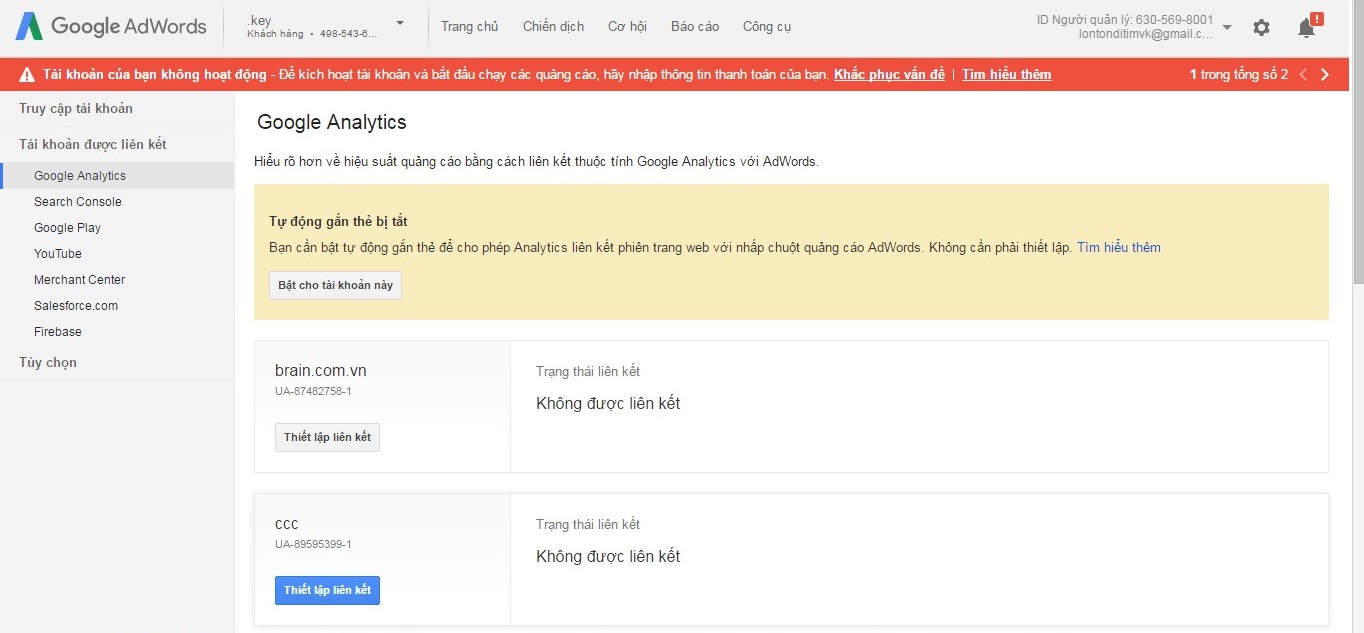
To be able to read Google Analytics metrics, your Google AdWords account must first be linked with your Google Analytics account. The article below will guide you through the specific steps you need to take to do this. Your Google AdWords account interface:
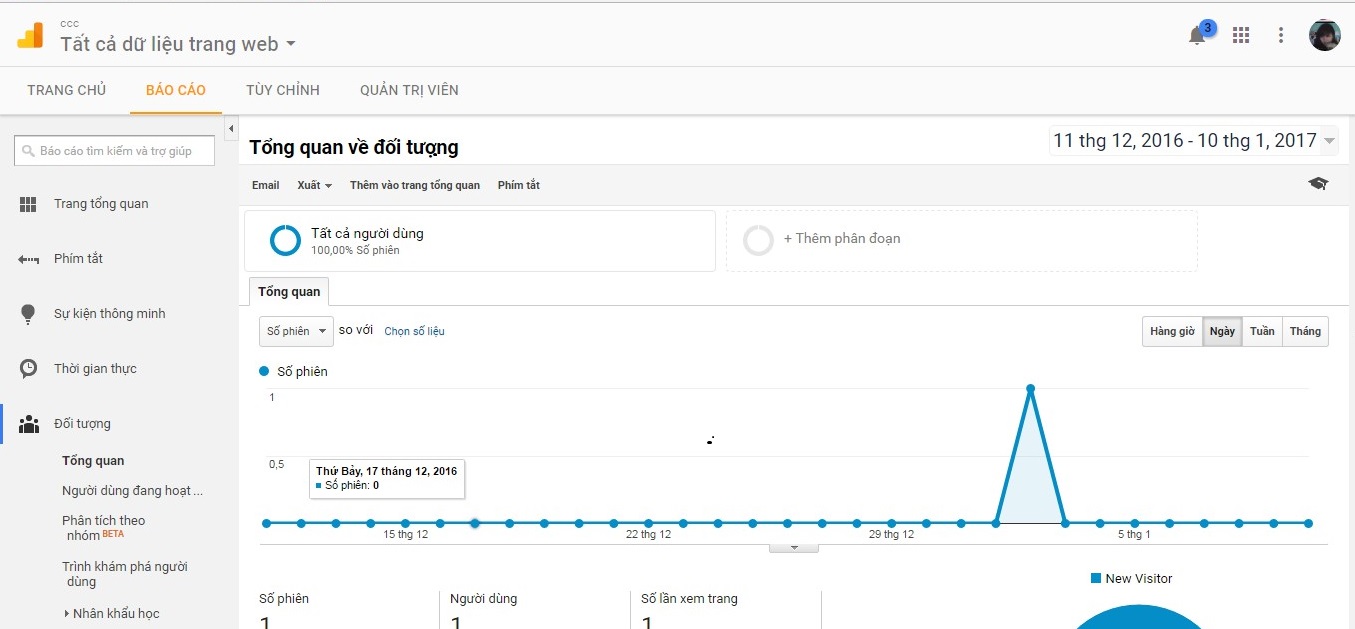
 Analytics reporting interface:
 Getting started:Requirements: The login email for both your AdWords and Google Analytics accounts must have admin permissions. Step 1: Go to the Admin section to begin the linking setup
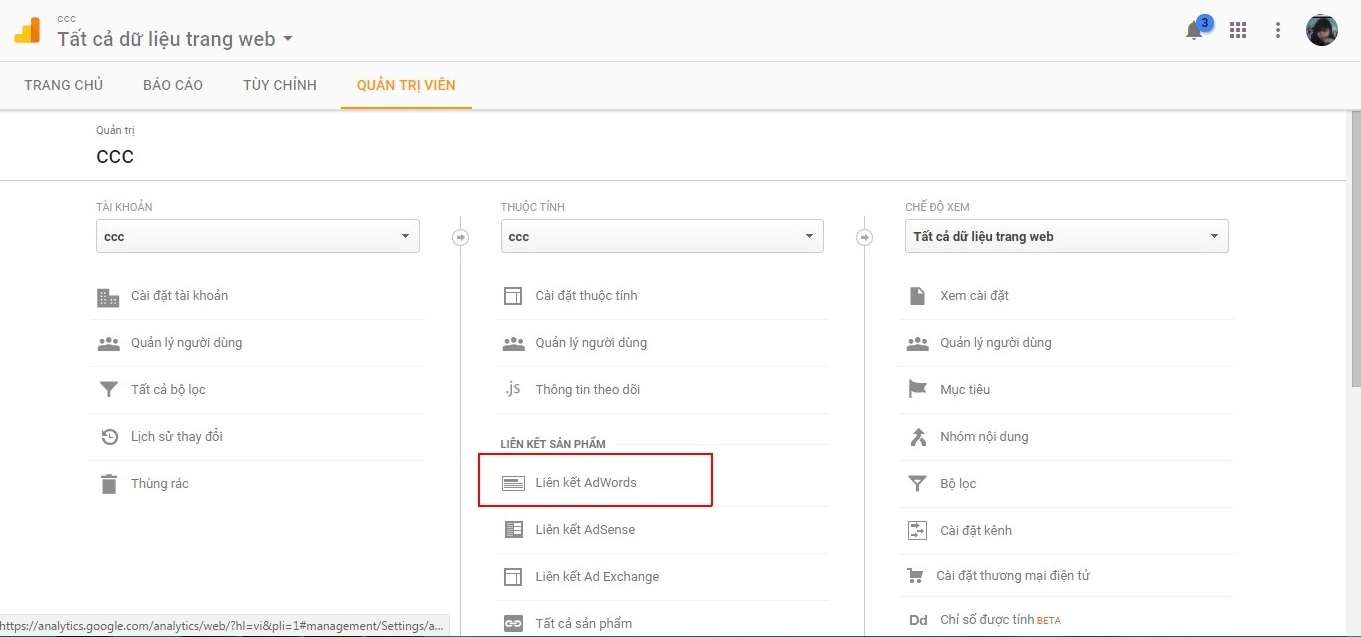
 Step 2: We are linking Analytics and AdWords, so we will select the 'AdWords links' section.
 Step 3: Select the AdWords account ID in the MCC to link with Analytics. The AdWords account is the account running the website that Analytics is tracking. For the ID to appear in the MCC AdWords list, the login email for AdWords and Analytics must be the same. When you click on the link section, Google Analytics will automatically retrieve the accounts under that MCC that this email manages.
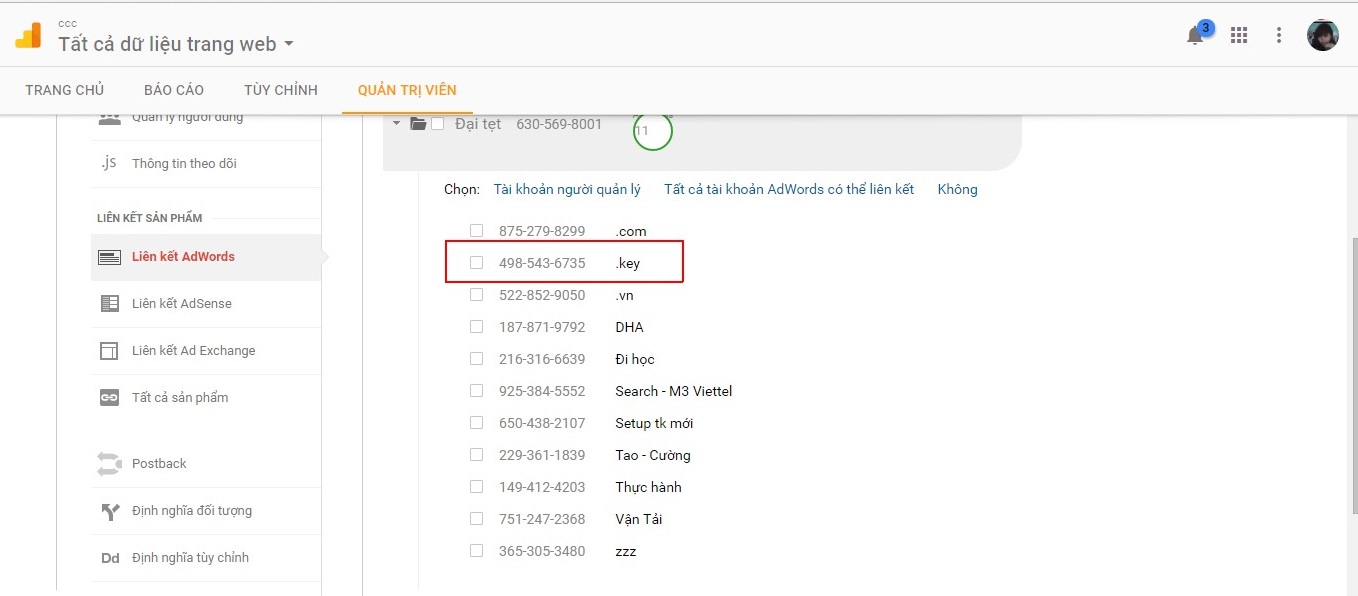 Step 4: After selecting the AdWords account ID to link, click Continue to proceed to the next step.
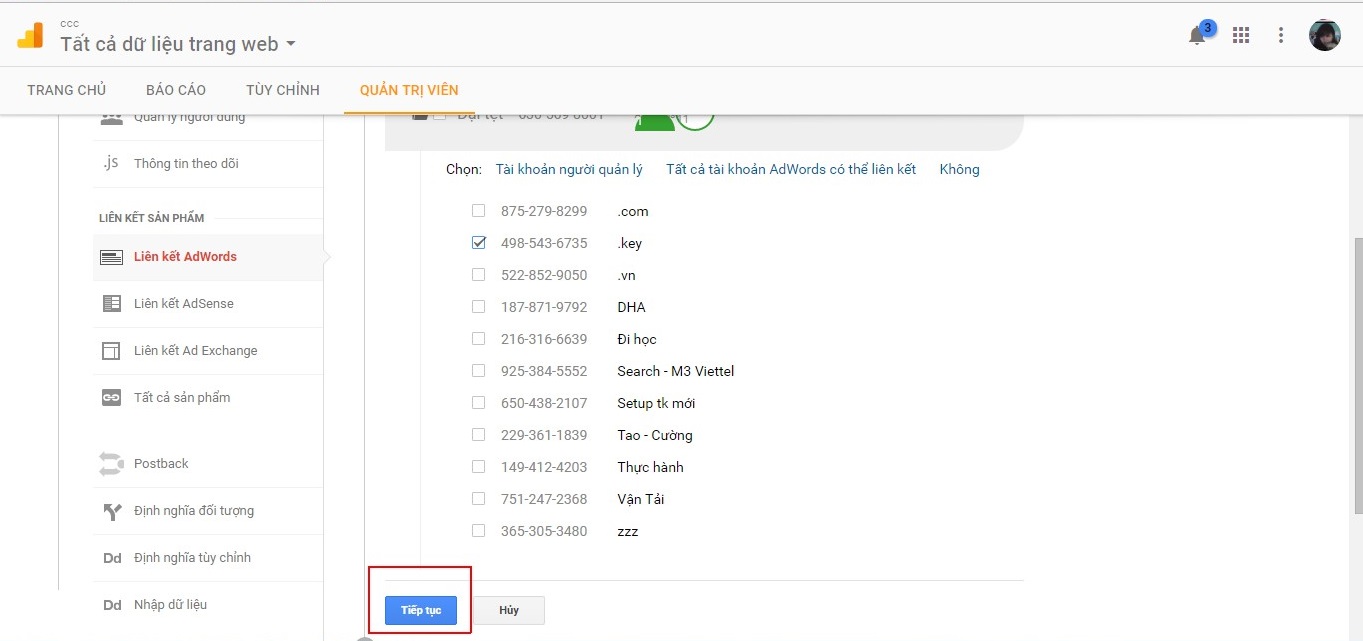 Step 5: Then enable the view between your AdWords account and Google Analytics: all website data.
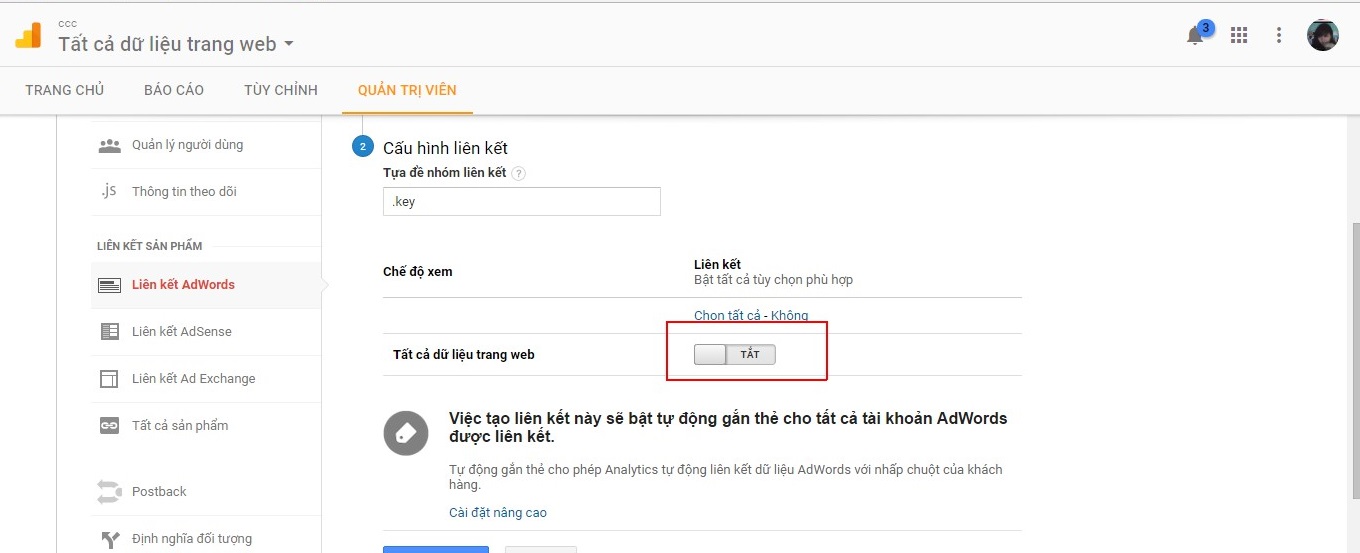 Step 6: Select to link the AdWords account and Google Analytics.
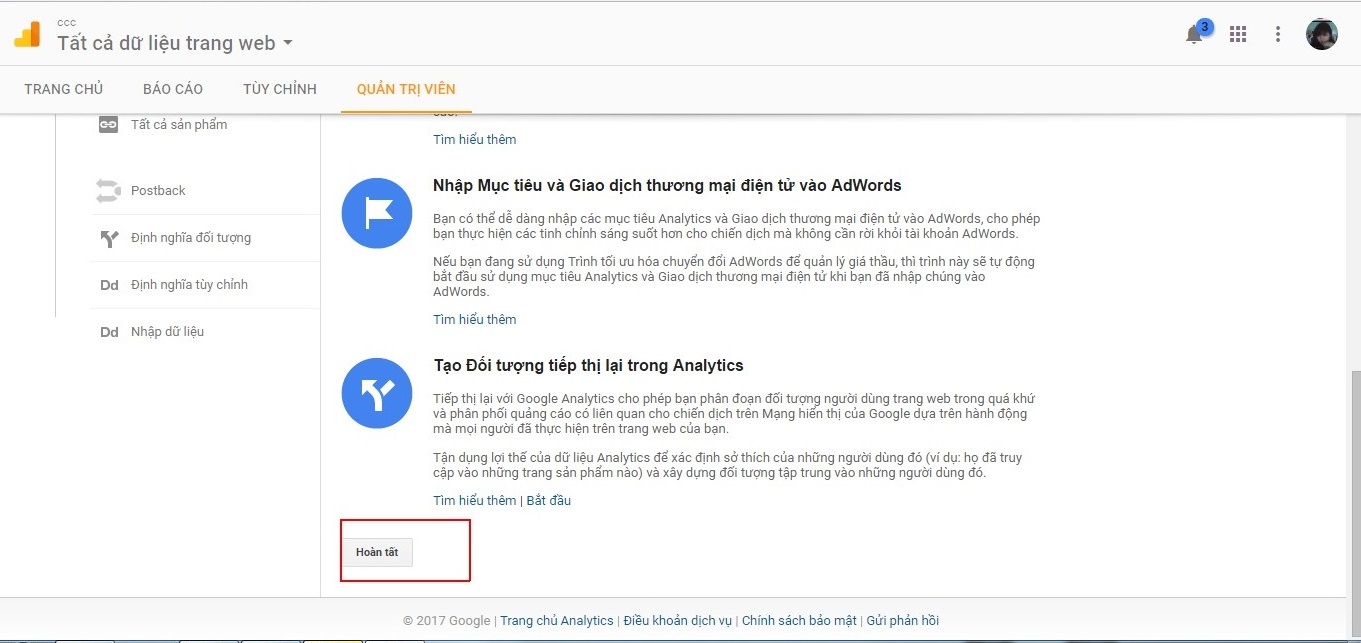
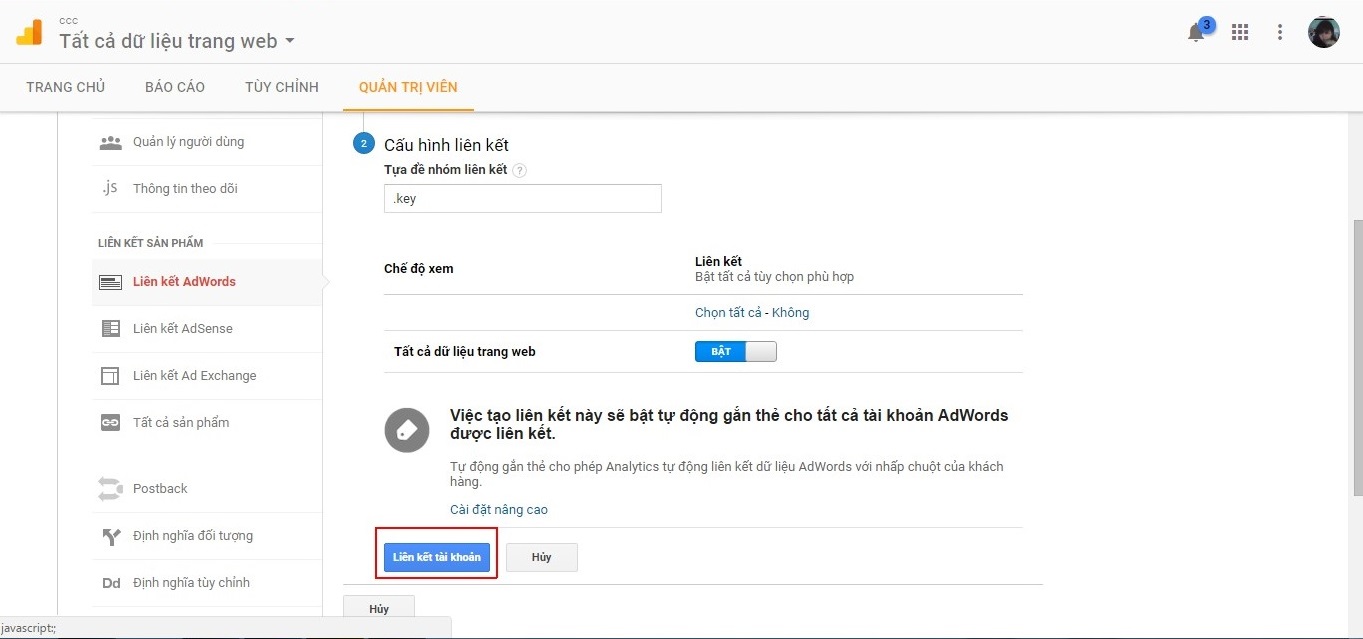 Step 7: Complete the linking process on Google Analytics, then proceed to the linking process on AdWords.
 Step 8: Click on the gear icon to set up the link, and select: 'Linked accounts'.
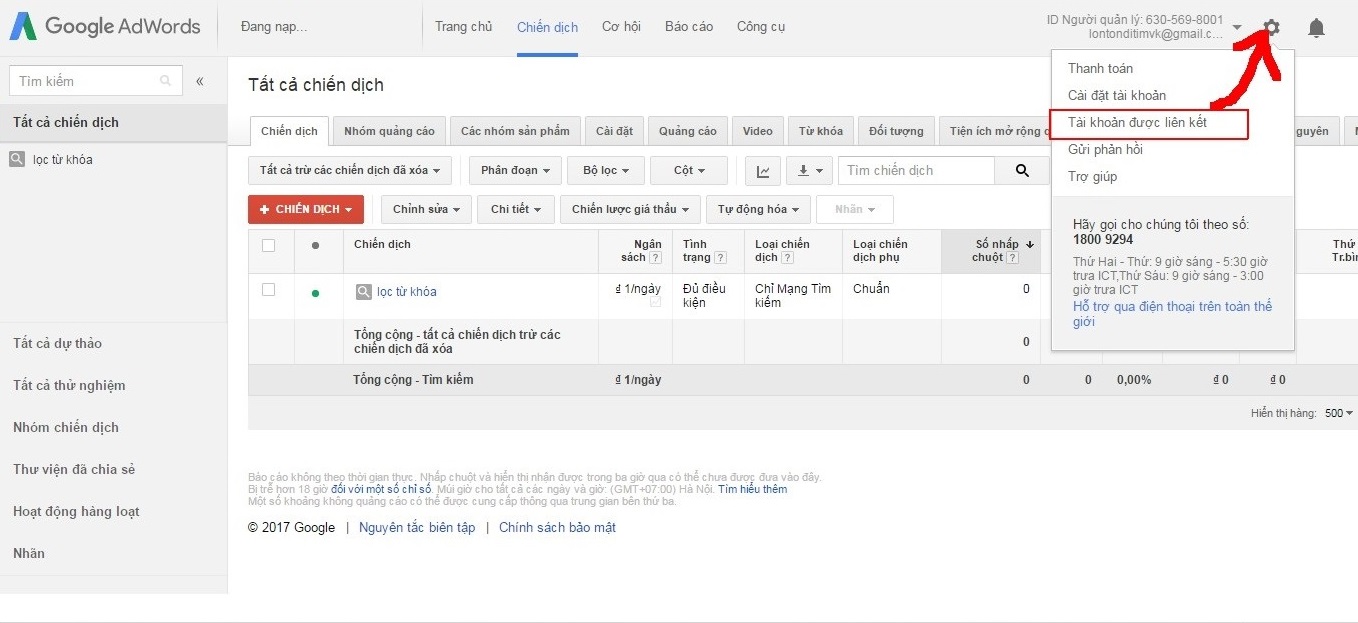 Step 9: Select Google Analytics to set up the edit section on AdWords.
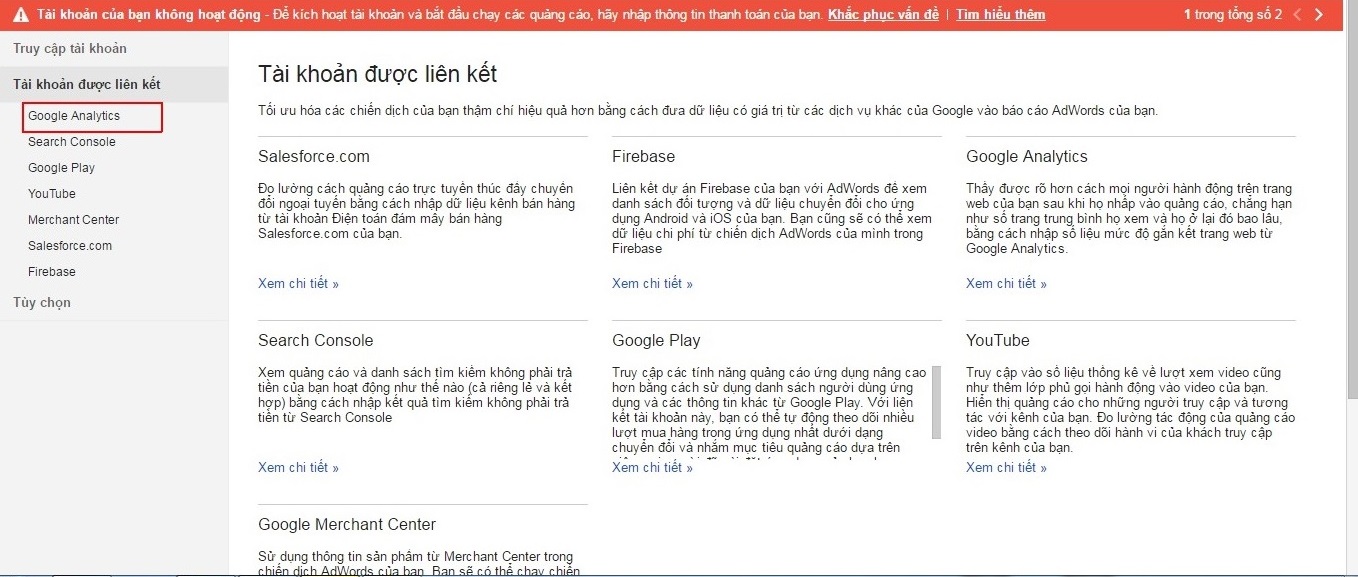 Step 10: When Google links with your AdWords account ID, the screen will display the Analytics account ID that has been linked with your AdWords account. Select 'Edit'
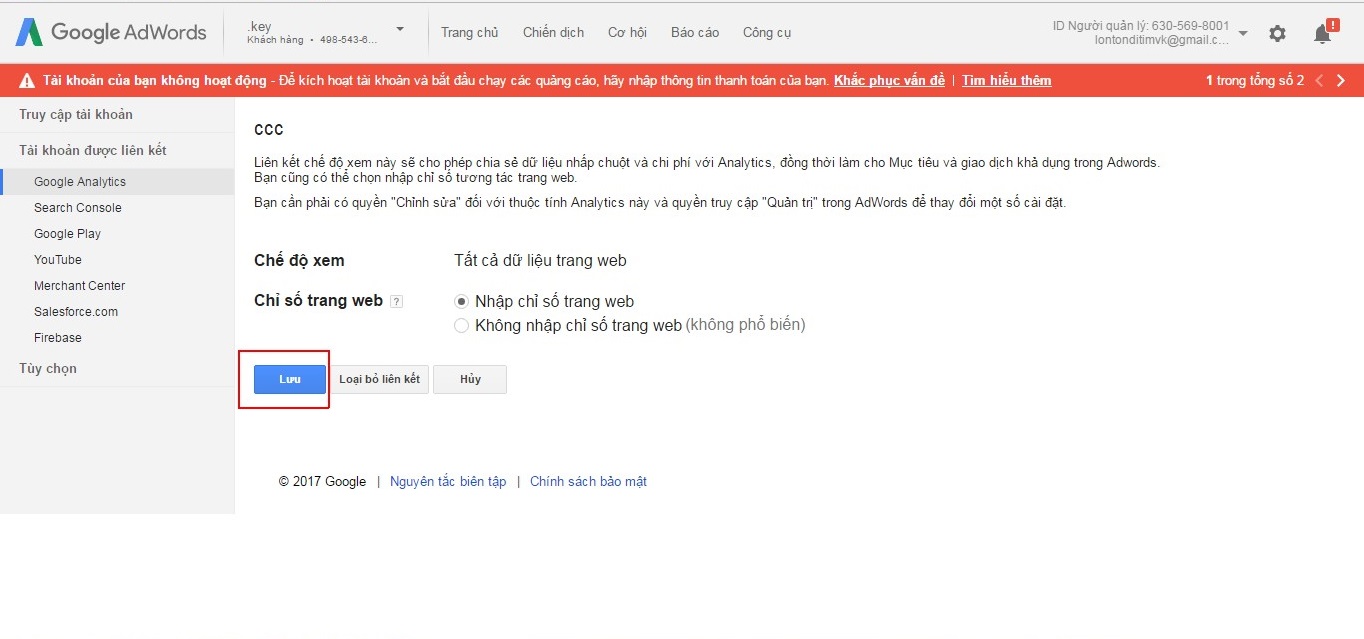
 Step 11: To retrieve data from Google Analytics, you need to enter the website property ID so you can view data from Google Analytics directly on your AdWords account.
 Step 12: The final setup task is to "Save"
 To optimize your advertising, approach Google AdWords from a holistic planning perspective with strategies suited for your Business, REGISTER NOW for SEONgon's GOOGLE ADWORDS SEARCH CLASS. Enter the code below to receive up to 20% discount!
 Import data from Google Analytics to your AdWords account. To read data on Google Analytics, we need to enable data fields from Google Analytics:
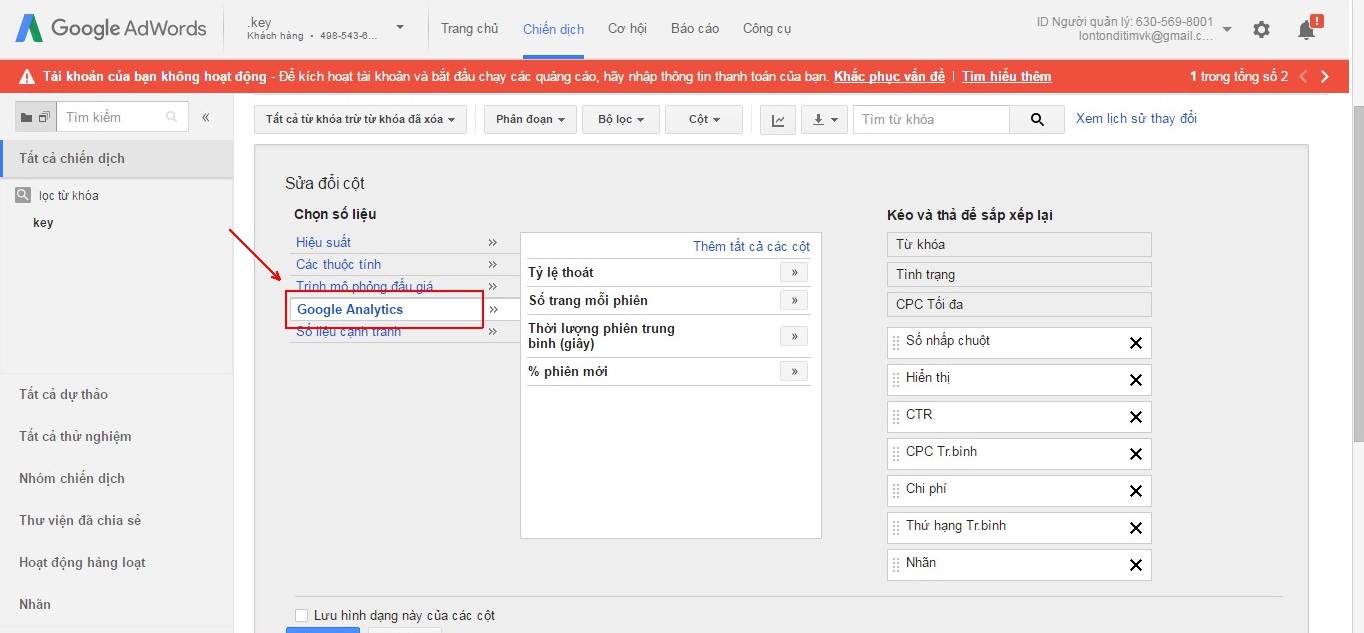
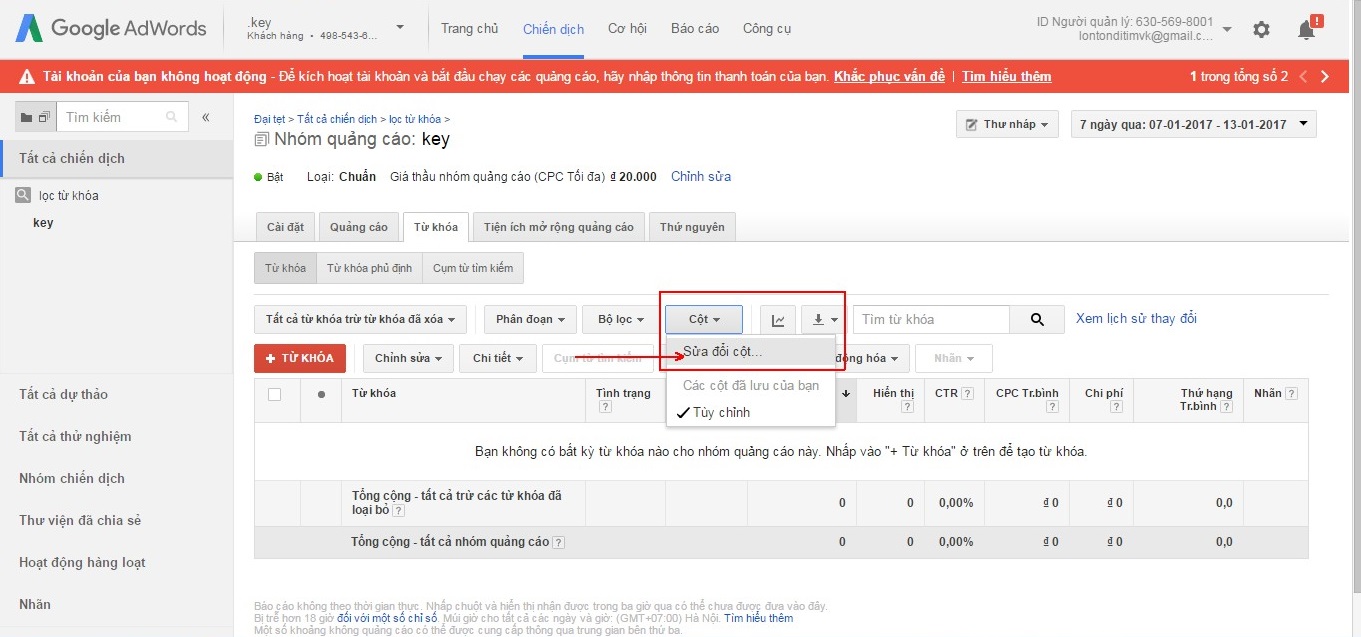 Step 2: Select the Google Analytics section.
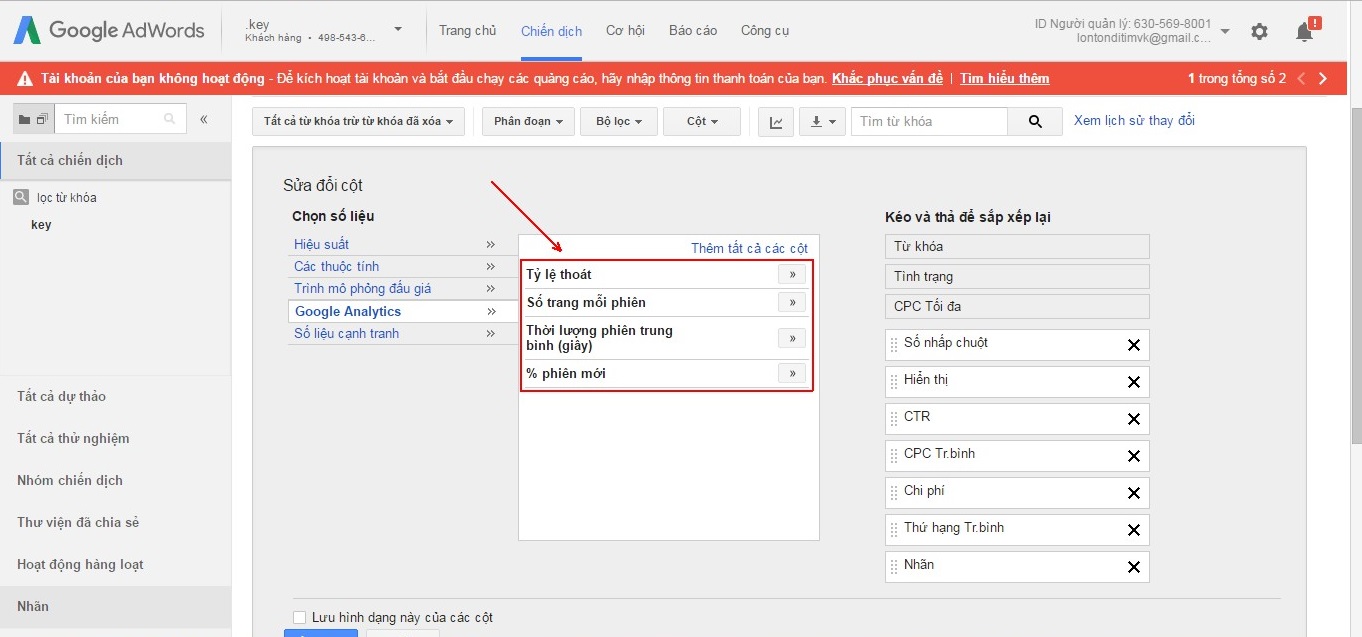
 Step 3: Select the data fields you want to track.
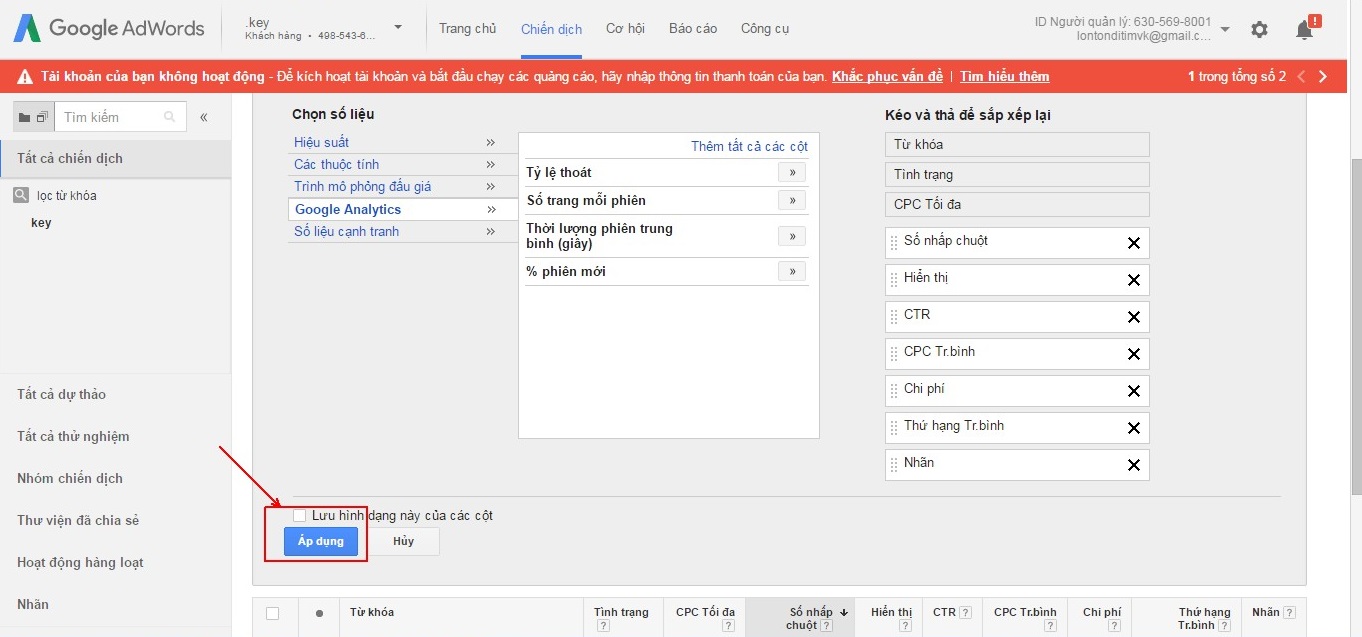
 Step 4: The final step is to Apply to display the data fields in the tracking column.
 After linking your AdWords account and Analytics account, in addition to the metrics mentioned in the guide, you can manage your campaigns much more effectively through Google Analytics features.
Analytics reporting interface:
Getting started:Requirements: The login email for both your AdWords and Google Analytics accounts must have admin permissions. Step 1: Go to the Admin section to begin the linking setup
Step 2: We are linking Analytics and AdWords, so we will select the 'AdWords links' section.
Step 3: Select the AdWords account ID in the MCC to link with Analytics. The AdWords account is the account running the website that Analytics is tracking. For the ID to appear in the MCC AdWords list, the login email for AdWords and Analytics must be the same. When you click on the link section, Google Analytics will automatically retrieve the accounts under that MCC that this email manages.
Step 4: After selecting the AdWords account ID to link, click Continue to proceed to the next step.
Step 5: Then enable the view between your AdWords account and Google Analytics: all website data.
Step 6: Select to link the AdWords account and Google Analytics.
Step 7: Complete the linking process on Google Analytics, then proceed to the linking process on AdWords.
Step 8: Click on the gear icon to set up the link, and select: 'Linked accounts'.
Step 9: Select Google Analytics to set up the edit section on AdWords.
Step 10: When Google links with your AdWords account ID, the screen will display the Analytics account ID that has been linked with your AdWords account. Select 'Edit'
Step 11: To retrieve data from Google Analytics, you need to enter the website property ID so you can view data from Google Analytics directly on your AdWords account.
Step 12: The final setup task is to "Save"
To optimize your advertising, approach Google AdWords from a holistic planning perspective with strategies suited for your Business, REGISTER NOW for SEONgon's GOOGLE ADWORDS SEARCH CLASS. Enter the code below to receive up to 20% discount!
Import data from Google Analytics to your AdWords account. To read data on Google Analytics, we need to enable data fields from Google Analytics:
- Bounce rate
- Pages per session
- Average session duration
- % new sessions
Step 2: Select the Google Analytics section.
Step 3: Select the data fields you want to track.
Step 4: The final step is to Apply to display the data fields in the tracking column.
After linking your AdWords account and Analytics account, in addition to the metrics mentioned in the guide, you can manage your campaigns much more effectively through Google Analytics features.