Guide to handling websites infected with malware, injected search results in Japanese, Chinese, etc.
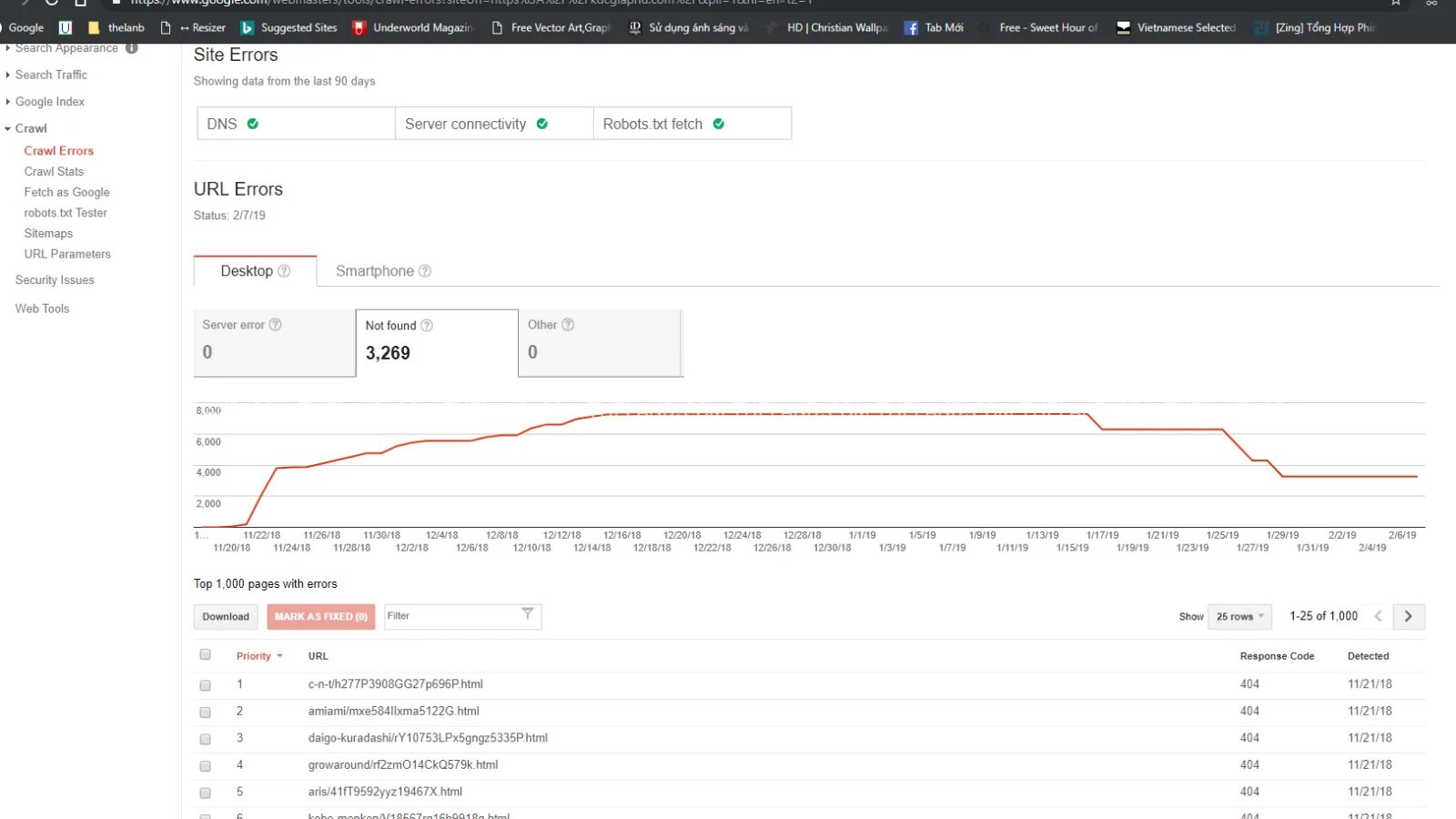
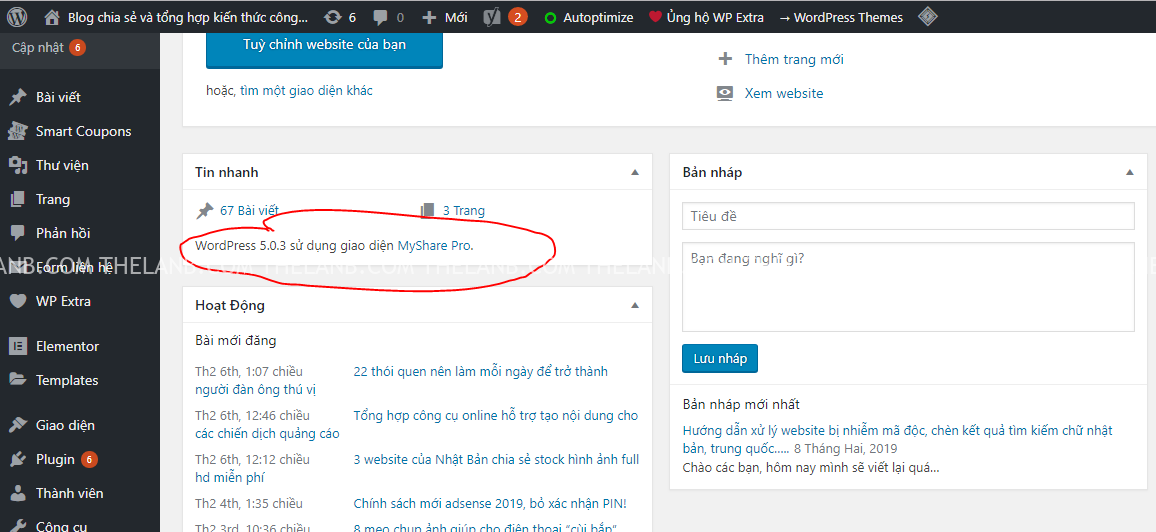
As you can see in the image above, the entire website's title was changed, while access remained normal, with many 404 links having their titles modified and indexed by Google. The malware primarily works by adding to outdated WordPress core with security vulnerabilities, inserting into wp-include, wp-admin, and adding commands to the theme's function.php to gain admin rights or add admin users. The steps to resolve this issue are as follows:
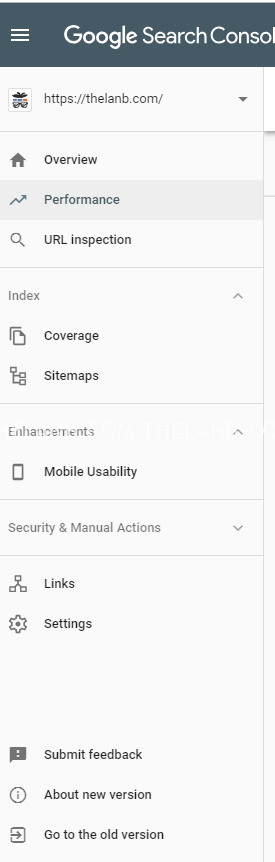
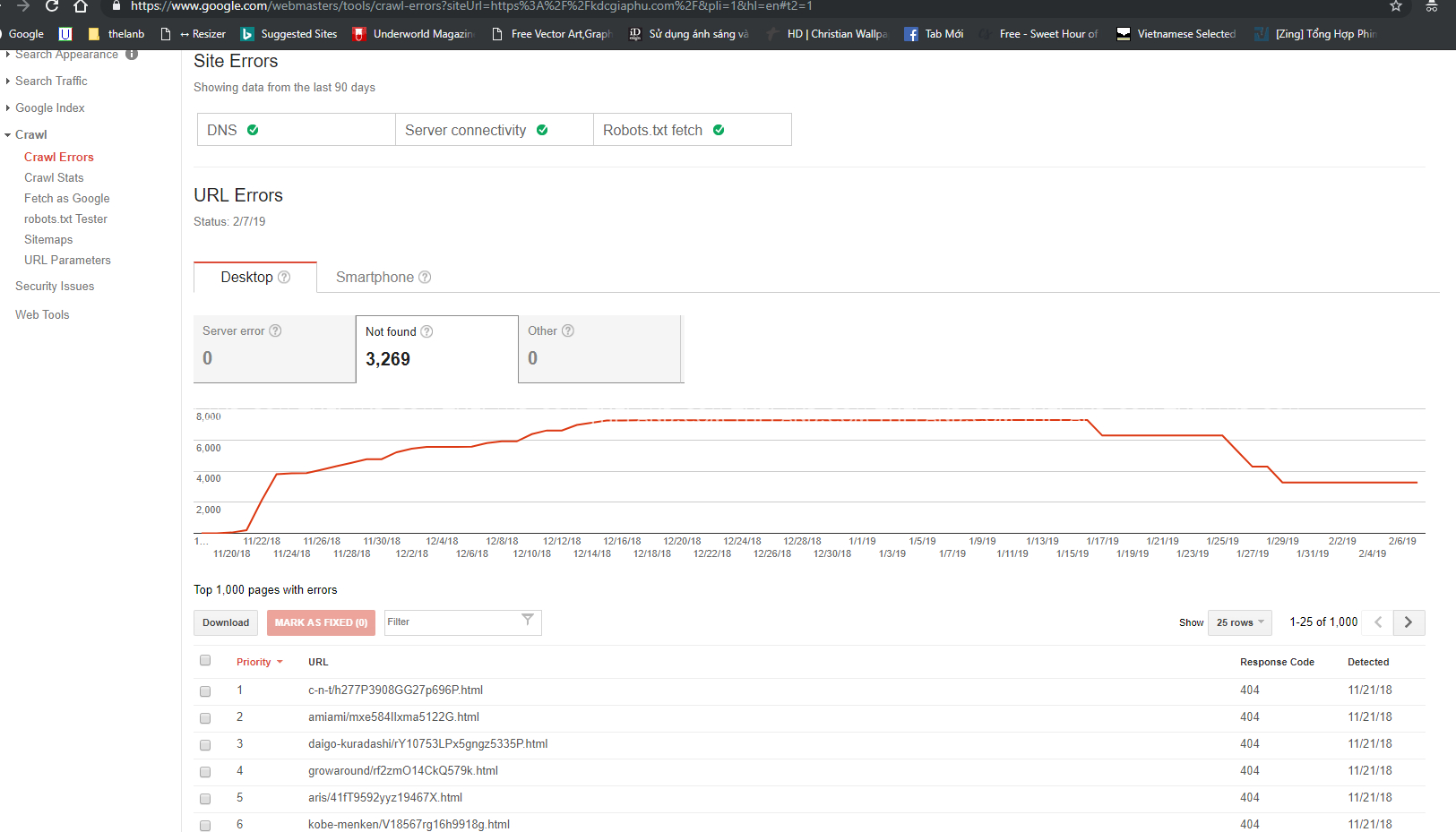
Check 404 links, this is the basis for determining whether your website has malware.
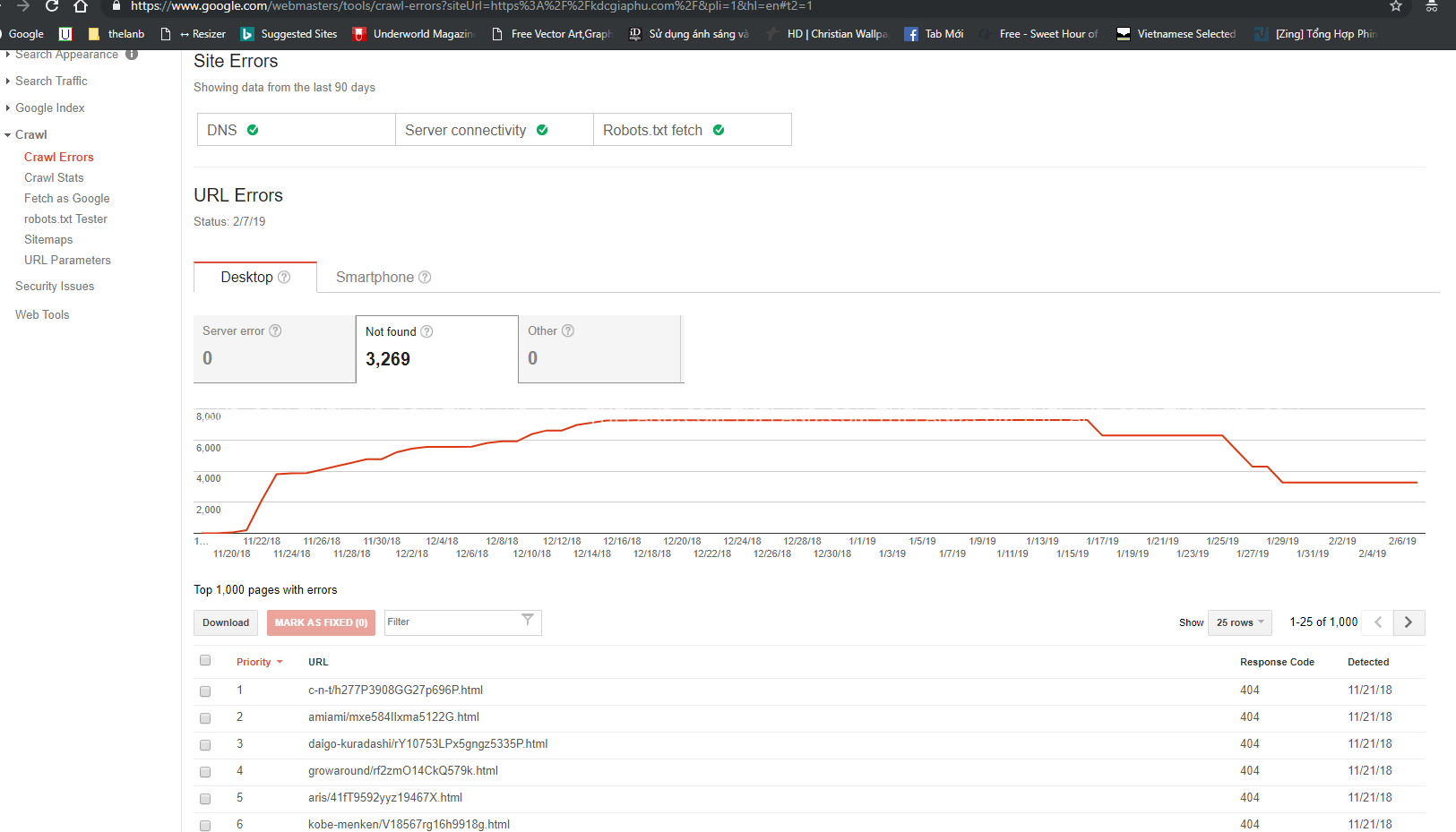 If the image above shows your website has up to 3269 injected links, and of course these links don't exist on your website. Note: If you can't find this sectionCrawl Errorsplease go back to the old management panel.
 Log into FTP or use cPanel as you prefer. Here I'm usingFlashFXP, replace the folders and files highlighted in yellow.
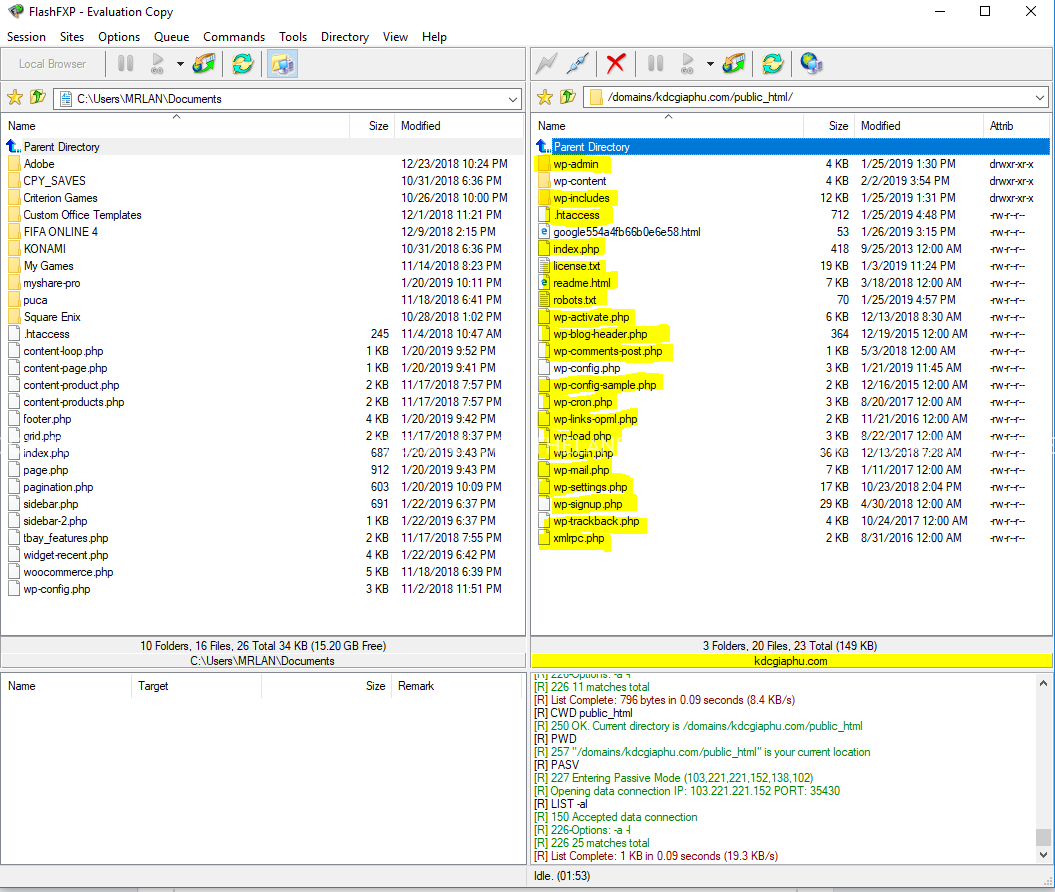 Tip: what I usually do is create a folder named oldsource, then gather all the yellow-highlighted files into it, then upload the new files. This way you won't miss any files and can check each file if the website doesn't work properly after uploading the new source. Also remember to check wp-config.phpto see if anything is unusual. If you have the original theme (I recommend you save the original theme or ask the builder to provide it again), do the same as the step above.
Important note: do not delete the /wp-content/uploads/ folder as all your post images are stored there.
Tip: what I usually do is create a folder named oldsource, then gather all the yellow-highlighted files into it, then upload the new files. This way you won't miss any files and can check each file if the website doesn't work properly after uploading the new source. Also remember to check wp-config.phpto see if anything is unusual. If you have the original theme (I recommend you save the original theme or ask the builder to provide it again), do the same as the step above.
Important note: do not delete the /wp-content/uploads/ folder as all your post images are stored there.
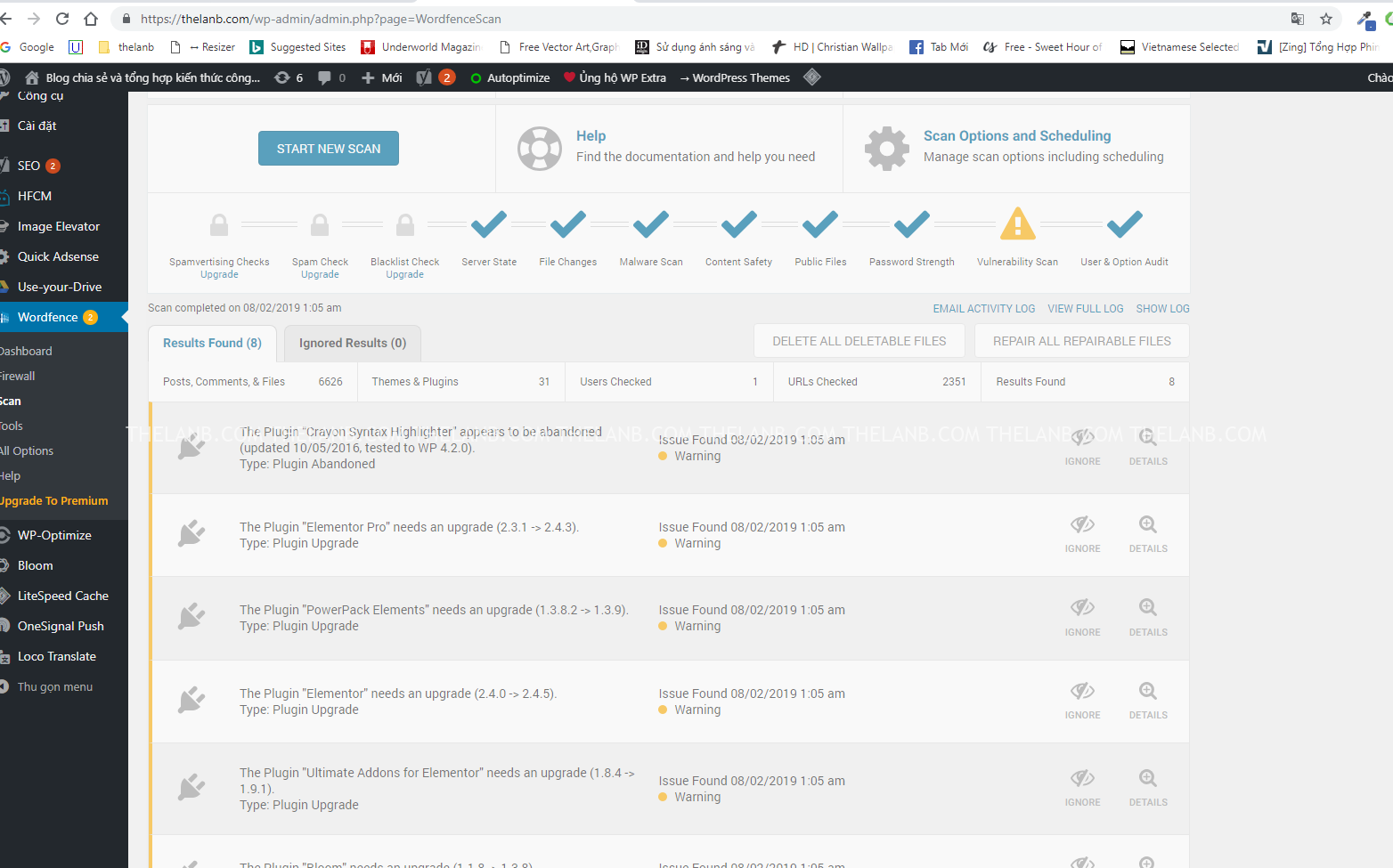 If there are red dots, fix them again. Yellow dots are plugins that need to be updated.
Resubmit sitemap: go to Google Webmaster, delete the old sitemap and add the newly created sitemap.
Remove 404 links:
If there are red dots, fix them again. Yellow dots are plugins that need to be updated.
Resubmit sitemap: go to Google Webmaster, delete the old sitemap and add the newly created sitemap.
Remove 404 links:
 Select all error notification links and click MARK AS FIXED.
 Conclusion:
With the 4 steps above, you can handle malware infections on your website yourself. Each person may have different approaches, but this is the method I've implemented on many websites. You can request your hosting provider to provide a backup (if you can't determine when the malware was introduced, this method is somewhat risky) to quickly execute the steps above. To prevent your website from being infected with malware again, I recommend you update WordPress core, themes, plugins, etc. if possible, monitor your website through webmaster tools, and install Wordfence to track changes to your website. If you have a better method, please share it with everyone. If you're a newbie or unable to perform the steps above yourself, please contact me for consultation and a quote.
Conclusion:
With the 4 steps above, you can handle malware infections on your website yourself. Each person may have different approaches, but this is the method I've implemented on many websites. You can request your hosting provider to provide a backup (if you can't determine when the malware was introduced, this method is somewhat risky) to quickly execute the steps above. To prevent your website from being infected with malware again, I recommend you update WordPress core, themes, plugins, etc. if possible, monitor your website through webmaster tools, and install Wordfence to track changes to your website. If you have a better method, please share it with everyone. If you're a newbie or unable to perform the steps above yourself, please contact me for consultation and a quote.
Step 1: Check Webmaster Tool.
This is the step I consider most important, and I have a guide on how to use webmaster tool that you can refer to if you haven't used it before. If you've never used webmaster tool, I recommend you don't proceed with the following steps and ask someone with experience instead. If your webmaster tool admin access has been removed, or check the account permissions section—if you see unfamiliar emails added to the admin section, remove them first and change your webmaster tool password.
If the image above shows your website has up to 3269 injected links, and of course these links don't exist on your website. Note: If you can't find this sectionCrawl Errorsplease go back to the old management panel.
Step 2: Delete old WordPress core and replace it with the latest WordPress core.
This step is very important, so do it correctly. If your website is infected with malware, PHP files have been injected into wp-admin, wp-include, theme, plugin, etc. Therefore, delete your old WordPress core and download the latest version. Note: if your theme is not compatible with the new WordPress version, it may result in a blank page. Download an updated theme version that's compatible with WordPress. In unavoidable cases, if your theme was custom-built and the builder no longer supports updates, download the WordPress version that matches the one you're currently using. Check by logging into wp-admin.
Log into FTP or use cPanel as you prefer. Here I'm usingFlashFXP, replace the folders and files highlighted in yellow.
Tip: what I usually do is create a folder named oldsource, then gather all the yellow-highlighted files into it, then upload the new files. This way you won't miss any files and can check each file if the website doesn't work properly after uploading the new source. Also remember to check wp-config.phpto see if anything is unusual. If you have the original theme (I recommend you save the original theme or ask the builder to provide it again), do the same as the step above.
Important note: do not delete the /wp-content/uploads/ folder as all your post images are stored there.
Step 3: Rescan the website, resubmit the sitemap, remove 404 links.
Step 3 has 3 sub-steps: Rescan the website: this is the final step to ensure your website is no longer infected with malware. I usually use Wordfence to scan.
If there are red dots, fix them again. Yellow dots are plugins that need to be updated.
Resubmit sitemap: go to Google Webmaster, delete the old sitemap and add the newly created sitemap.
Remove 404 links:
Select all error notification links and click MARK AS FIXED.
Step 4: Speed up Google indexing, manually remove links.
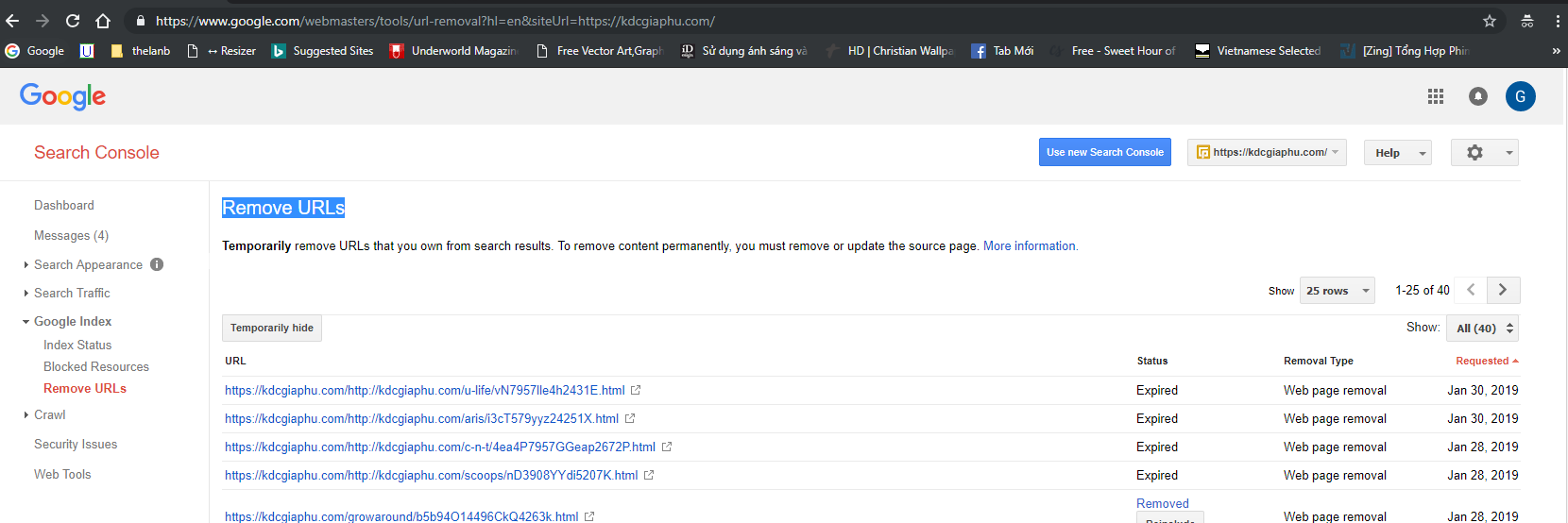
If your website has average traffic, you can't wait for Google to re-index, right? Take the opportunity to manually remove the indexed 404 links first. Go to Google and type site:yourwebsitename.com and it will list all links indexed by Google. Go to Google Webmaster Remove URLs to remove the broken links.
Conclusion:
With the 4 steps above, you can handle malware infections on your website yourself. Each person may have different approaches, but this is the method I've implemented on many websites. You can request your hosting provider to provide a backup (if you can't determine when the malware was introduced, this method is somewhat risky) to quickly execute the steps above. To prevent your website from being infected with malware again, I recommend you update WordPress core, themes, plugins, etc. if possible, monitor your website through webmaster tools, and install Wordfence to track changes to your website. If you have a better method, please share it with everyone. If you're a newbie or unable to perform the steps above yourself, please contact me for consultation and a quote.