Nowadays, all websites have a mail sending feature to make contact easier and send emails when there are new orders, but not all hosting providers allow sending mail through the PHP mail function or SMTP mail by domain name. Therefore, SMTP allows businesses and organizations to send and receive mail simply and efficiently, much better than other free email services. Today, SMTP plays an important role for businesses using email or any service involving the SMTP protocol to send and receive emails. So what is SMTP? and why is the SMTP protocol so important nowadays. Below I will send you how to set up and configure free Gmail SMTP for your reference.
Why should you send mail through Gmail SMTP?
Before proceeding with setup and configuration, you need to know some benefits of using Gmail SMTP.
Your server is rarely blacklisted, meaning your Gmail is less likely to be marked as spam by Google.
Your sent emails will have a higher success rate.
No need to pay for email registration fees.
How to set up and configure Gmail SMTP.
We will perform 3 steps to set up and configureSMTP Gmail:
Step 1: Create an App Password for your Gmail account.
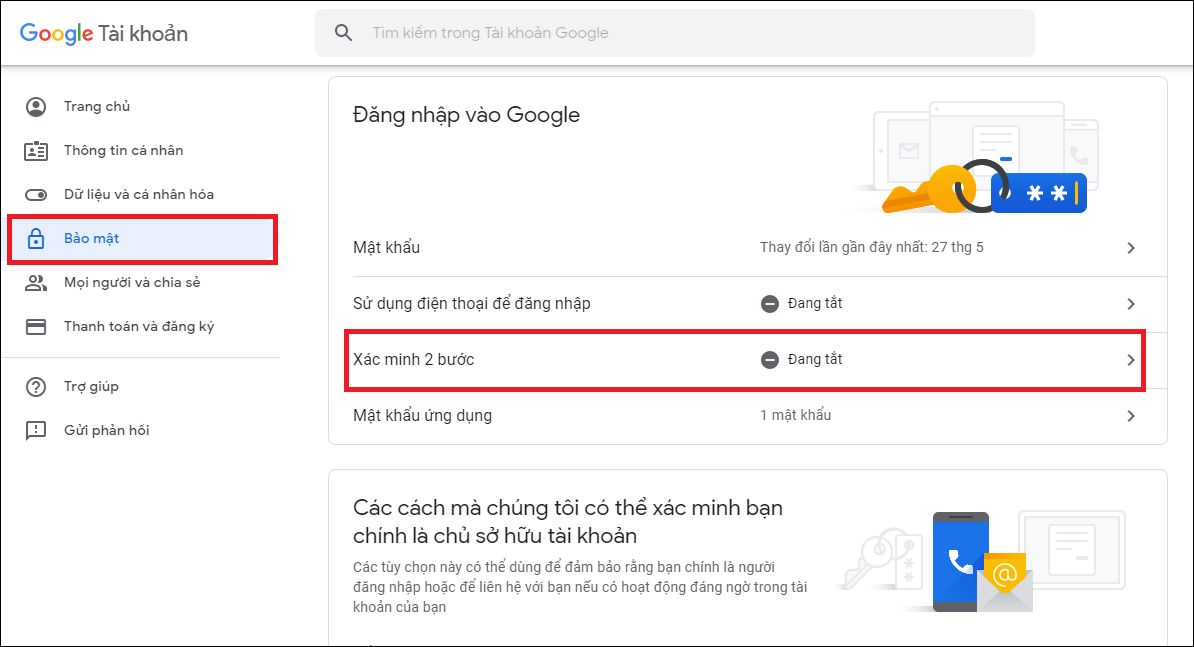
First, you accesshttps://myaccount.google.com/and log in to the Gmail account you want to use for Gmail SMTP. Next, select the Security section and enable or create2-Step Verification(if not yet created or currently disabled).
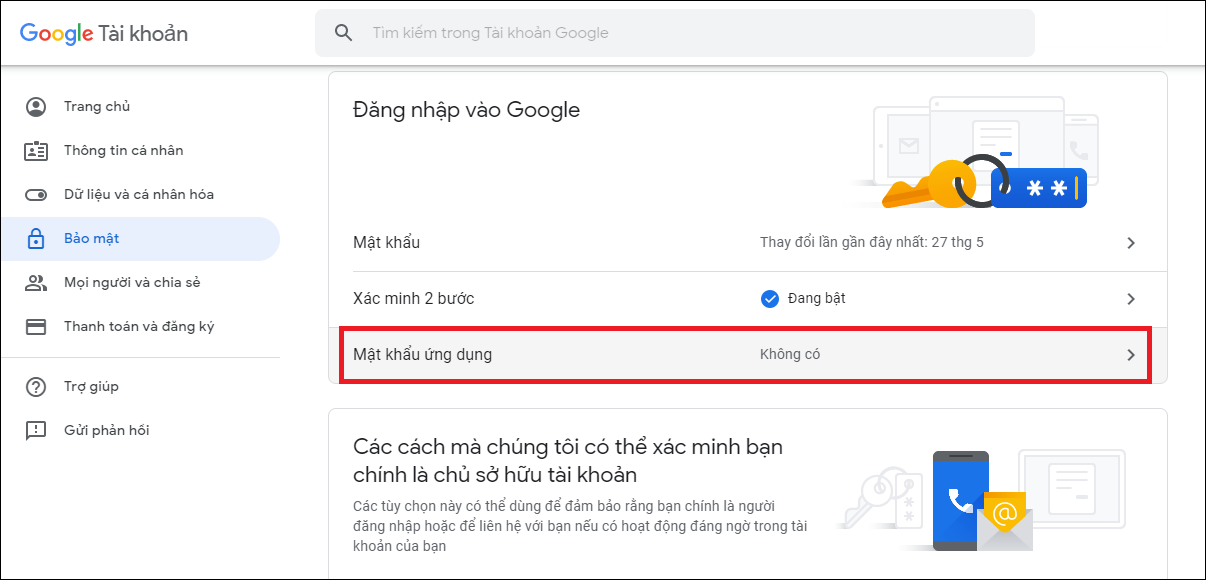
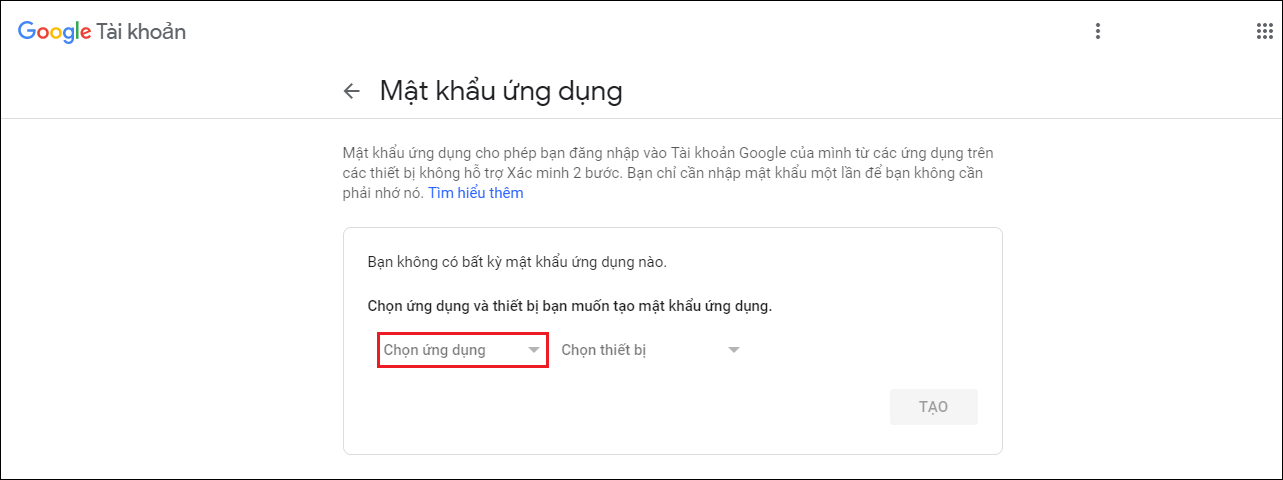
Then, we start gettingApp Password.
Enter in the fieldselect app.
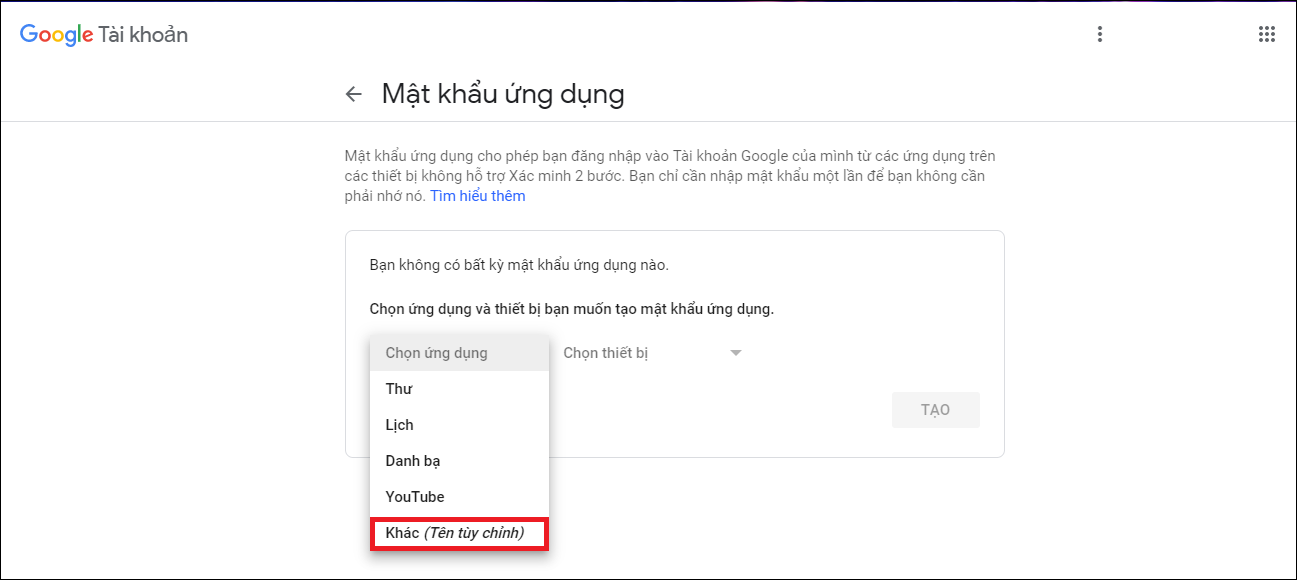
And click onOther (custom name)“.
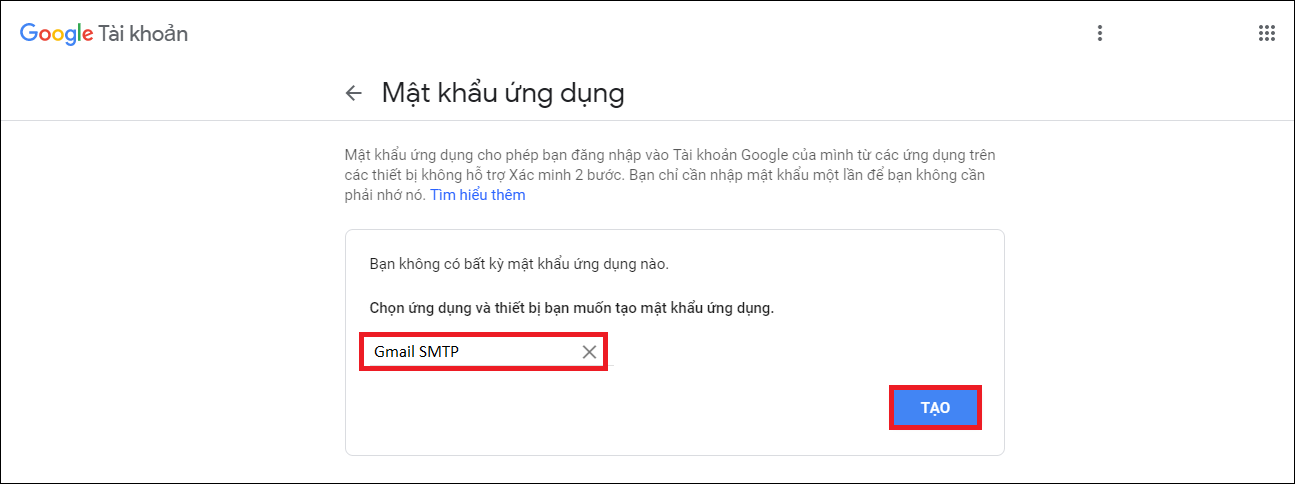
Set any name (for example here we set it asGmail SMTP).
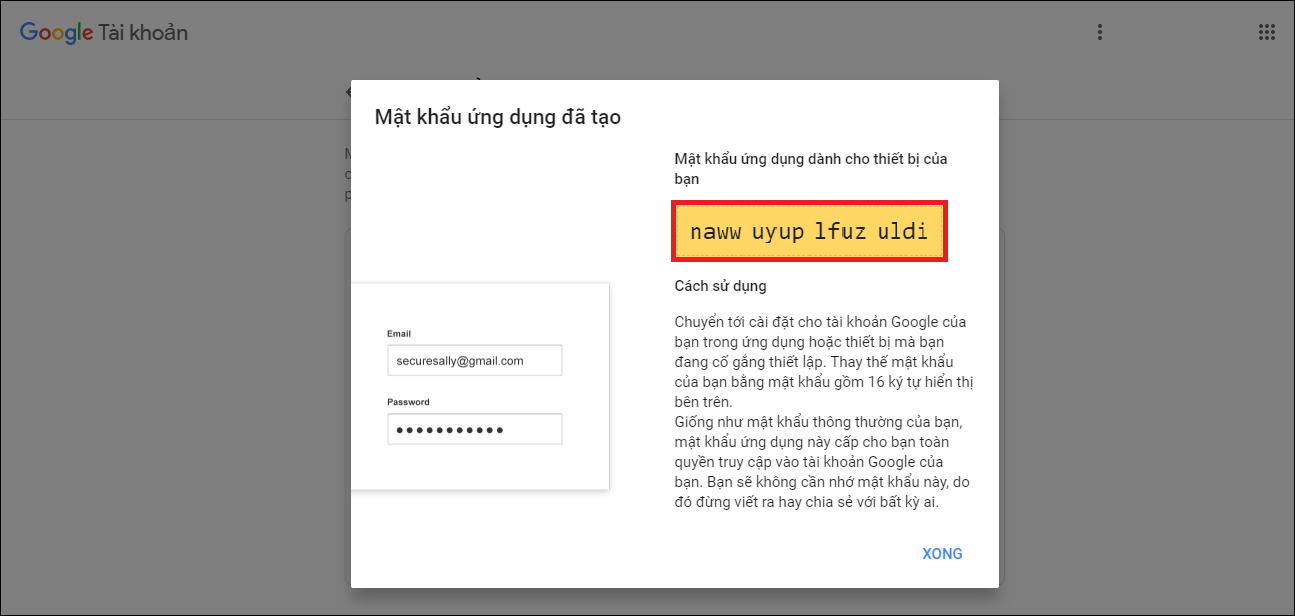
Finally, we click theCreateIn the yellow box above is your App Password. Save this password so we can configure it for SMTP on your website.
Step 2: Select and Install Plugins to Configure SMTP Gmail:
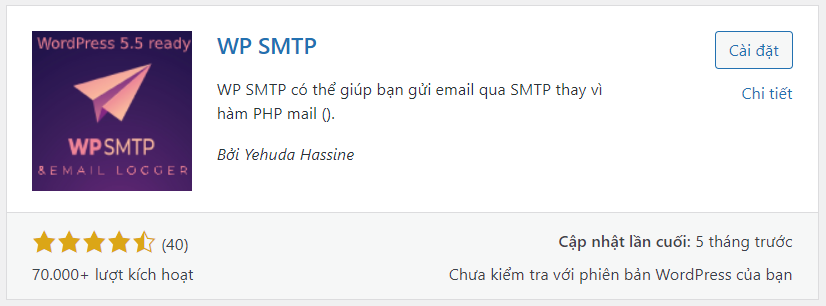
There are many Plugins that support SMTP configuration, however in this guide I will use WP SMTP. Install the WP SMTP Plugin on your WordPress Website.
Step 3:After searching, select the PluginWP SMTPand click the install button. When installation is complete, click activate to use it.
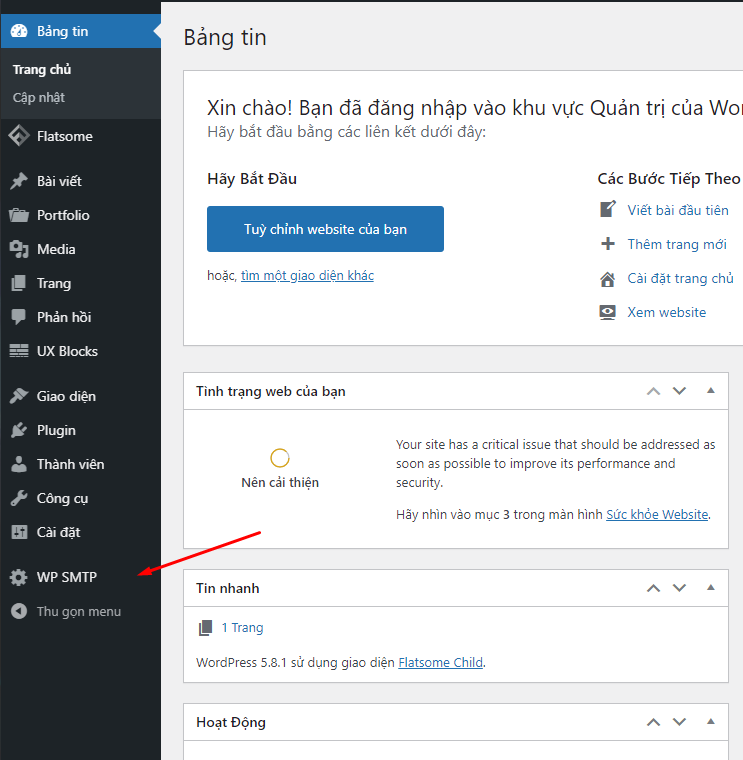
After installing and activatingWP SMTP, go to the interface WordPress Admin → WP SMTPto open the settings interface.
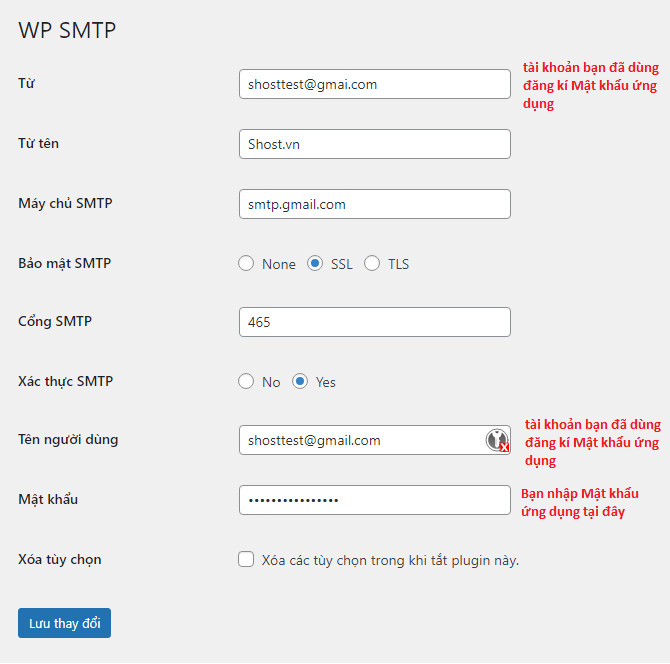
Step 3: Enter SMTP Server Connection Information
From:Enter your email or any email address to send from.
From Name:Your name or sender name
SMTP Server:Here you enter "smtp.gmail.com“
SMTP Authentication:Select the "yes“
SMTP Port:Select port465 withSSL, if not available then please select port587 with TLS. (you can learn more)
Username:Re-enter Email matching the first field.
Password:For this field, use the App Password you created above.
Finally you click "Save changes["Click "" to complete the connection information declaration. To verify that your SMTP information has been sent and is correct, you can check it again from your Gmail inbox. If the email is sent like that, it means it was successful. Wishing you success!"]