How speed tests were doneWe tested Flatsome on this page ( Theme Flatsome) (Classic Shop).
We used WP Rocket plugin for Caching.
Images where optimized with this plugin.
Site is hosted on WP Engine
We enabled Lazy Loading in Advanced > Optimize
WP Rocket is one of the best caching plugins for WordPress available today. This premium plugin not only offers superior features compared to its competitors but is also extremely simple to install and configure. It's safe to say WP Rocket is a plugin well worth the investment. If you've already purchased this plugin, here's a guide to installing and using it. Quickly activate WP Rocket on your blog/website to experience the excellent speed it delivers.
WP Rocket Plugin Installation and Usage Guide
To start using WP Rocket, you first need to install and activate it. Since this plugin is not available in the WordPress.org plugin repository, you'll need to upload it to install.

After activating WP Rocket, disable and remove any caching, minification, lazy loading, and other support plugins you previously installed. Go to Settings => WP Rocket. Here, you'll configure additional options for WP Rocket. As for basic features, WP Rocket automatically activates them upon plugin activation.
Tab Dashboard
 Where:
- Remove all cached files: delete all cache files.
- Start cache preloading: regenerate cache files.
- Purge OPCache content: clear OpCode cache.
Tab Cache
 Where:
- Enable caching for mobile devices: activate caching for mobile devices.
- Separate cache files for mobile devices: create separate cache files for mobile and desktop devices. If your site is responsive, you shouldn't enable this option.
- Enable caching for logged-in WordPress users: enable caching for logged-in users.
- Specify time after which the global cache is cleared (0 = unlimited): set the time to automatically clear all website cache; set to 0 if you want to disable this feature.
Tab File Optimization
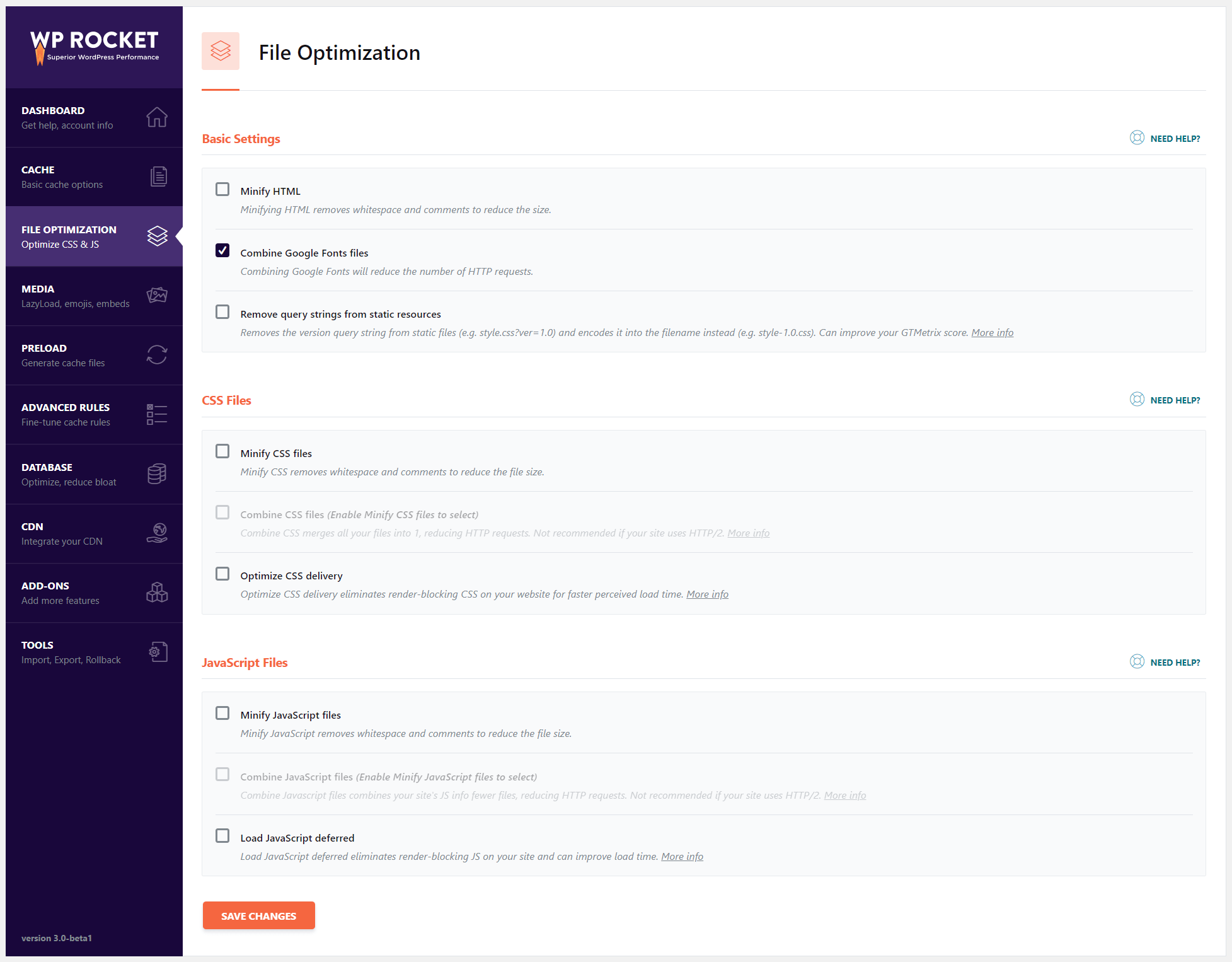 Where:
- Minify HTML: compress HTML.
- Combine Google Fonts files: merge Google Fonts files.
- Remove query strings from static resources: remove query strings from JS and CSS files.
- Minify CSS files: compress CSS files.
- Combine CSS files (Enable Minify CSS files to select): merge all CSS files into one; requires Minify CSS files to be enabled first. This feature should not be enabled if your website supports HTTP/2.
- Optimize CSS delivery: optimize CSS file rendering to fix CSS blocking content display issues on Google PageSpeed Insights.
- Excluded CSS Files: exclude CSS files you don't want to minify and combine, helping resolve layout issues.
- Minify JavaScript files: compress JS files.
- Combine JavaScript files (Enable Minify JavaScript files to select): merge all JS files into one; requires Minify JavaScript files to be enabled first. This feature should not be enabled if your website supports HTTP/2.
- Load JavaScript deferred: optimize JS file loading to fix JS blocking content display issues on Google PageSpeed Insights.
- Safe Mode (recommended): appears when you enable Load JavaScript deferred. It's recommended to enable this so jQuery files load first, preventing layout issues and feature errors.
- Excluded JavaScript Files: exclude JS files you don't want to minify and combine, helping resolve interface breaks and feature errors.
Feel free to test the features in this tab. If your website encounters errors, simply disable the feature you just activated and clear the cache.
 Where:
- Enable for images: activate lazy loading for images.
- Enable for iframes and videos: activate lazy loading for iframes and videos.
- Disable Emoji: disable emoji (emoticons in WordPress).
- Disable WordPress embeds: disable embed scripts.
Tab Preload
 Where:
- Activate sitemap-based cache preloading: activate cache preloading (cache regeneration) based on XML Sitemaps.
- Manual: regenerate cache manually.
- Automatic: regenerate cache automatically. Disable this feature if it overloads your server.
- URLs to prefetch: DNS prefetch can make files outside your host load faster, especially on mobile networks. Enter the URLs of files you want to prefetch here.
Tab Advanced Rules
 Where:
- Never Cache URL(s): enter URLs you don't want to cache.
- Never Cache Cookies: enter cookie IDs you don't want to cache.
- Never Cache User Agent(s): enter user agent strings you don't want to cache.
- Always Purge URL(s): enter URLs you want to purge from cache when publishing or updating posts.
- Cache Query String(s): enter query strings you want to cache.
Tab Database
 Where:
- Revisions: delete post revisions.
- Auto Drafts: delete auto-saved drafts.
- Trashed Posts: delete trashed posts (in Trash folder).
- Spam Comments: delete spam comments.
- Trashed Comments: delete trashed comments (in Trash folder).
- Expired transients: delete expired transients.
- All transients: delete all transients.
- Optimize Tables: optimize database tables.
- Schedule Automatic Cleanup: set up automatic database cleanup on a daily, weekly, or monthly schedule.
Tab CDN
 Where:
- Enable Content Delivery Network: activate this if your site uses a CDN (MaxCDN, KeyCDN, etc.). If you use CloudFlare, you don't need to activate this.
- CDN CNAME(s): enter your CDN link here, for example cdn.wpcanban.com. There are also options allowing you to run all files, images only, CSS and JS only, JS only, or CSS only on CDN.
- Exclude files from CDN: enter the URLs of files you don't want to run on CDN.
Tab Add-ons
 Where:
- Varnish: turn ON if your host supports Varnish cache.
- CloudFlare: turn ON if your website uses CloudFlare.
When CloudFlare is turned ON, an additional tab will appear allowing you to configure the connection with your CloudFlare account:
 Where:
- Global API key: your CloudFlare API, you can view the guide to get API here.
- Account email: your CloudFlare account email.
- Domain: enter your website domain.
- Development mode: turn ON if you don't want CloudFlare to cache your website data, usually used when you're editing CSS or JS files.
- Optimal settings: turn ON if you want WP Rocket to automatically optimize CloudFlare settings. You should be careful when using this feature; it's best to configure manually.
- Relative protocol: use only with CloudFlare's flexible SSL. URLs of JS and CSS files will be changed to // instead of http:// or https://
- Clear all CloudFlare cache files: delete all cache files on CloudFlare.
 Where:
- Export settings: allows you to download the WP Rocket plugin configuration file to your computer. You can use this file to quickly set up WP Rocket on other websites.
- Import settings: allows you to upload the WP Rocket plugin configuration file from your computer.
- Rollback: this feature allows you to downgrade WP Rocket to an older version in case the current version has errors or is incompatible with your website.
- Finally, click the Save Changes button to save all settings.