Remove unnecessary fields from WooCommerce checkout page

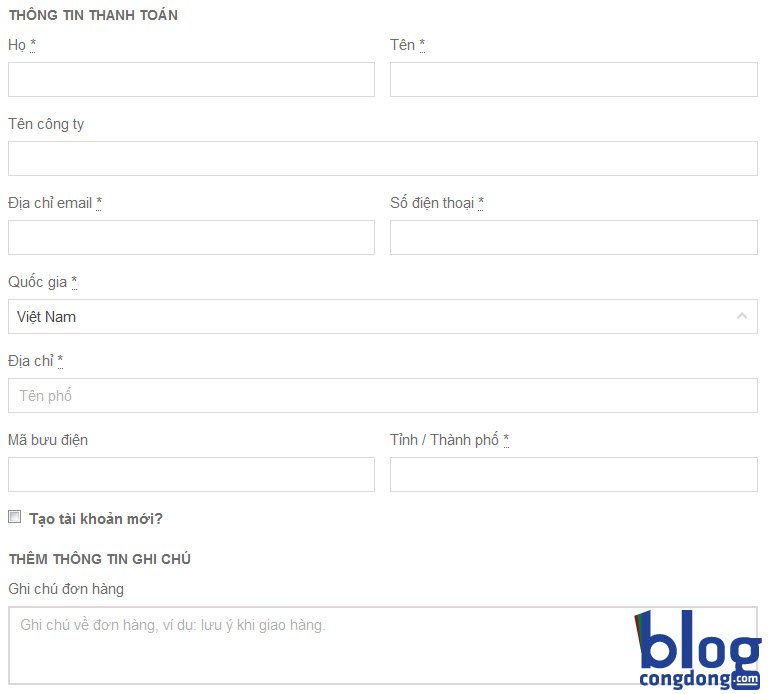
You want toremove some unnecessary fields from the checkout page of your e-commerce website using WooCommerce? By default, WooCommerce's checkout page is quite complex for Vietnamese users when entering payment information. You want toremove fieldssuch asCompany Name, Country, Postcode / ZIP, Town / City, etc.…but WooCommerce doesn't support disabling or removing those fields. So how can you remove those fields in the easiest way? The answer will be in this article, please read and follow the instructions below to be able toremove unnecessary fields from the checkout pageon your WordPress e-commerce site.
 –Remove unnecessary fields from the checkout page:Youcheck the field you want to removeThat's itclick Disablethen clickSave changesto save changes. –Edit field properties:To edit properties, click on the itemEditcorresponding to that field and you'll see the settings panel appear as follows:
 Here you only need to pay attention to these items:
 You may also likeRemove /product-category/ from WooCommerce product category URL

Guide to removing unnecessary fields in WooCommerce
Toremove unnecessary fields from the WooCommerce Checkout pageI have 2 methods. In this article, I will guide you through both methods. If you don't like touching code, you can use a plugin, but if you prefer to work with code, there's also a way for you ?Method 1: Using Woo Checkout Field Editor Pro plugin
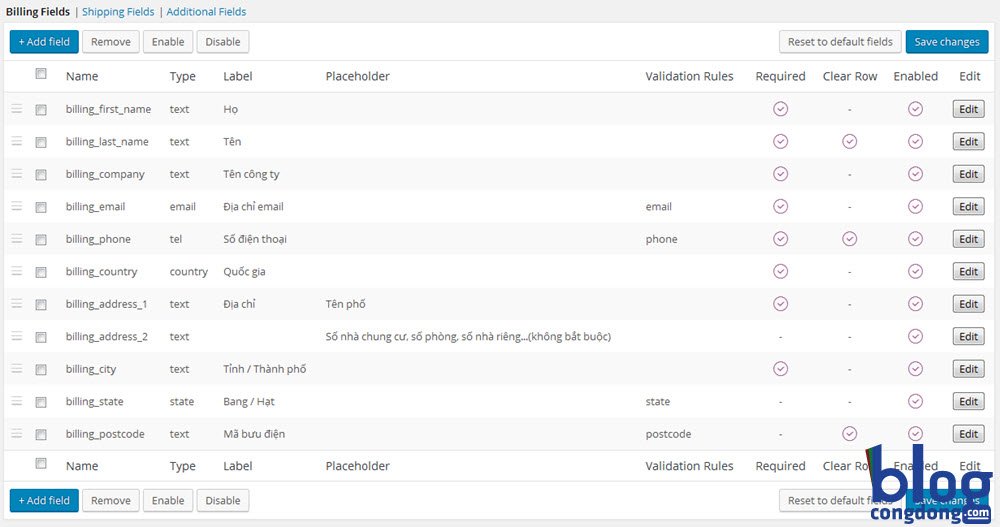
For those who don't like touching code, this is a quick and simple way for you to remove unnecessary fields from the checkout page. You may also have seen some guides on using pluginsWooCommerce Checkout Managerto remove unnecessary fields, but now that plugin has been deleted and I don't think it's very good. In this article, I introduce to youplugin Woo Checkout Field Editor Pro. Personally, I find it quite lightweight and very simple but effective. First, install the pluginWoo Checkout Field Editor Proon your website. Then access the menuWooCommerce -> Checkout Formyou will see the plugin interface as follows:
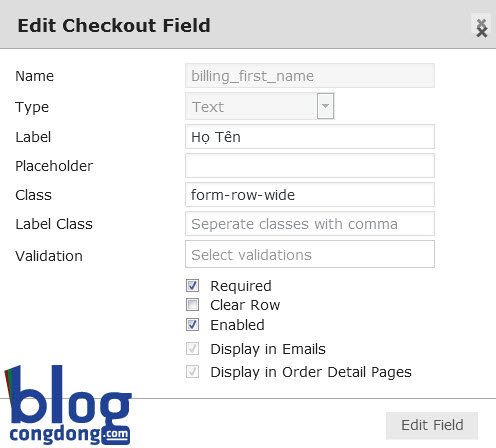
–Remove unnecessary fields from the checkout page:Youcheck the field you want to removeThat's itclick Disablethen clickSave changesto save changes. –Edit field properties:To edit properties, click on the itemEditcorresponding to that field and you'll see the settings panel appear as follows:
Here you only need to pay attention to these items:
- Label:This is the field name displayed on the WooCommerce checkout page.
- Class:Here you can set a class name for that field so you can customize CSS separately later.
- Required:Check if that field is required for customers to enter information.
- Clear Row:Check if you want that field to stand alone on one row.
- Enabled:Enable or disable that field. Check it to display on the checkout page.
You may also likeRemove /product-category/ from WooCommerce product category URL
Method 2: Use code inserted into functions.php file
This method is for those who prefer not to use plugins. To remove a field in the checkout section, youinsert codebelow into thefunctions.phpfile in your current theme.add_filter( 'woocommerce_checkout_fields' , 'custom_override_checkout_fields' );
function custom_override_checkout_fields( $fields ) {
unset($fields['billing']['billing_state']);
return $fields;
}
Here, if you want to remove any field from the checkout page, you just need to add one more lineunset(……..)and you're done. As you can see in the code line aboveunset($fields[‘billing’][‘billing_state’]);right? Here you just need to pay attention to those 2 values:billingand the valuebilling_state. Now based on the list of values below, select and replace them to remove the fields you don't want to display. SectionBilling: billing
- First Name: billing_first_name
- Last Name: billing_last_name
- Company Name: billing_company
- Address: billing_address_1
- Address 2: billing_address_2
- Town/City: billing_city
- Postcode: billing_postcode
- Country: billing_country
- State: billing_state
- Email Address: billing_email
- Phone: billing_phone
- First Name: shipping_first_name
- Last Name: shipping_last_name
- Company Name: shipping_company
- Address: shipping_address_1
- Address 2: shipping_address_2
- Town/City: shipping_city
- Postcode: shipping_postcode
- Country: shipping_country
- State: shipping_state
- Additional notes field: order_comments
add_filter( 'woocommerce_checkout_fields' , 'custom_override_checkout_fields' );
function custom_override_checkout_fields( $fields ) {
     unset($fields['billing']['billing_company']);
     unset($fields['billing']['billing_country']);
     unset($fields['billing']['billing_address_2']);
	 unset($fields['billing']['billing_city']);
	 unset($fields['billing']['billing_state']);
	 unset($fields['billing']['billing_postcode']);
     return $fields;
}
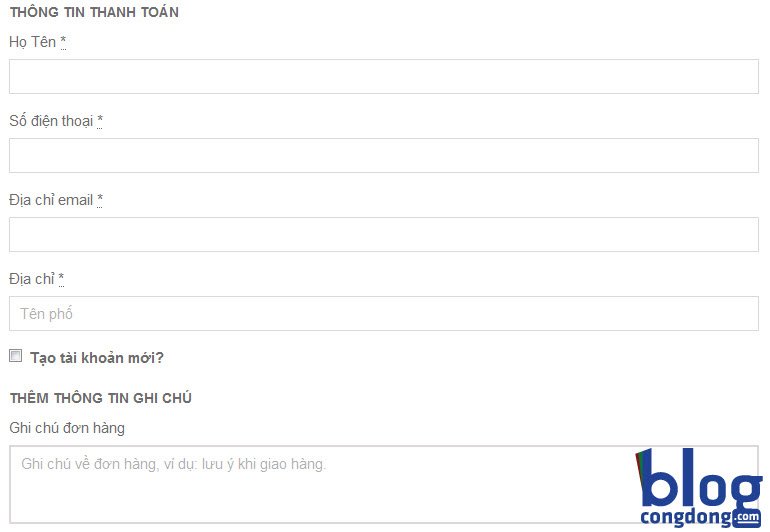
After adding the code above and saving the functions.php file, you'll be able to remove unnecessary fields and have a clean, easy-to-use checkout page for your customers as follows: