Transferring hosting in WordPress or changing your website's domain name is no longer unfamiliar, just backup all data from the old host to the new host. The way to transfer hosting for WordPress is actually similar to backing up and restoring data, only the difference is that you back up on this host but restore on another host. As for changing the domain name for the website, in addition to pointing the domain to the host, you will need to modify the path in the database (wp_options table) to the new domain. But if you don't want to manually transfer hosting or change the domain name for your WordPress website, the free pluginDuplicatorto do it completely automatically
See more:
Why does Duplicator help you migrate hosts or change domains quickly?
Duplicator plugin works like a data backup plugin, it will backup all data on your website including source code and database, then compress everything into a .tar.gz file. But Duplicator has one additional feature which isautomatically restore the backupon another host, and automaticallychange all website settings to the new domainif you need to change your website's domain.
How to use Duplicator plugin
Sau khi Install pluginDuplicator, you will see a Duplicator menu appear in the Dashboard. You can go toDuplicator -> Packages -> Create Newto create a new backup package.
Then you can name the package if you want, or click on theArchivesection to optionally exclude some data you don't want to include if needed, otherwise just leave it as is and click Next.
This step will scan your data to check the size and provide a detailed report on whether your configuration is suitable for exporting data, because usually if your website has a lot of data and your host is too weak, it won't work.
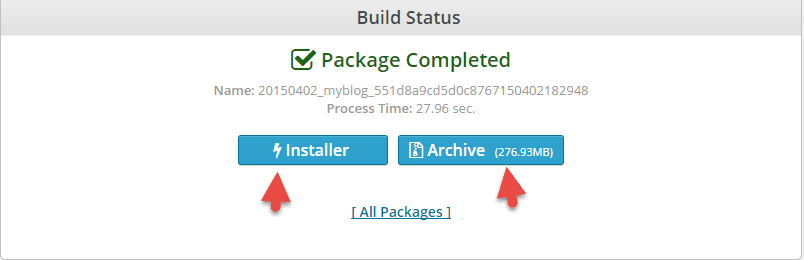
If it only shows Warning on some parts, you can still use it, it will just take a bit longer. You can click the Build button to start creating the backup package from this plugin, the waiting time can be fast or slow depending on the size of your data. After it's done, you can download the data file andinstaller.phpto your computer. The installer.php file is the file you must run when you need to restore data on another host.
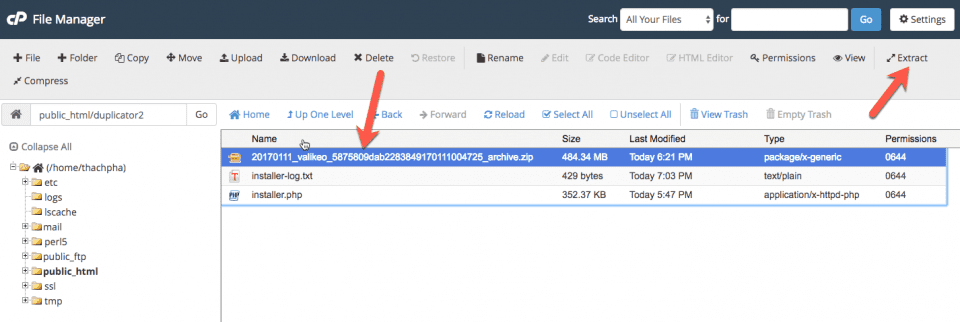
Now I need to restore this data on another host, so I will upload the .zip file (website data) and installer.php (restoration tool) to the host. Then go to the host's File Manager, find the .zip file just uploaded and select Extract.
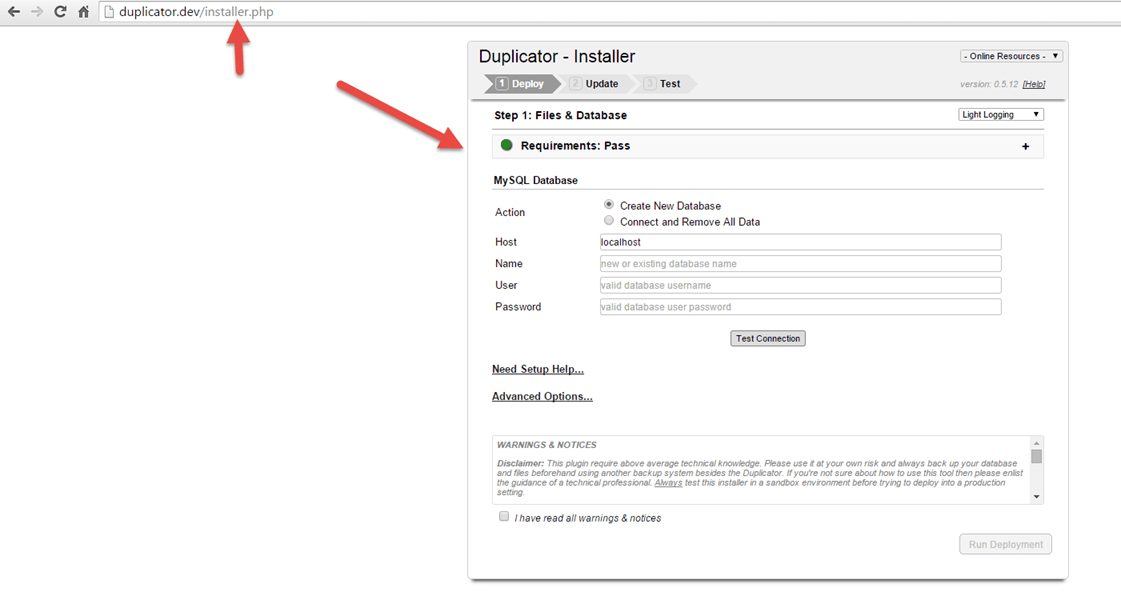
then run the installer.php file on your host via the pathhttp://domain/installer.php.
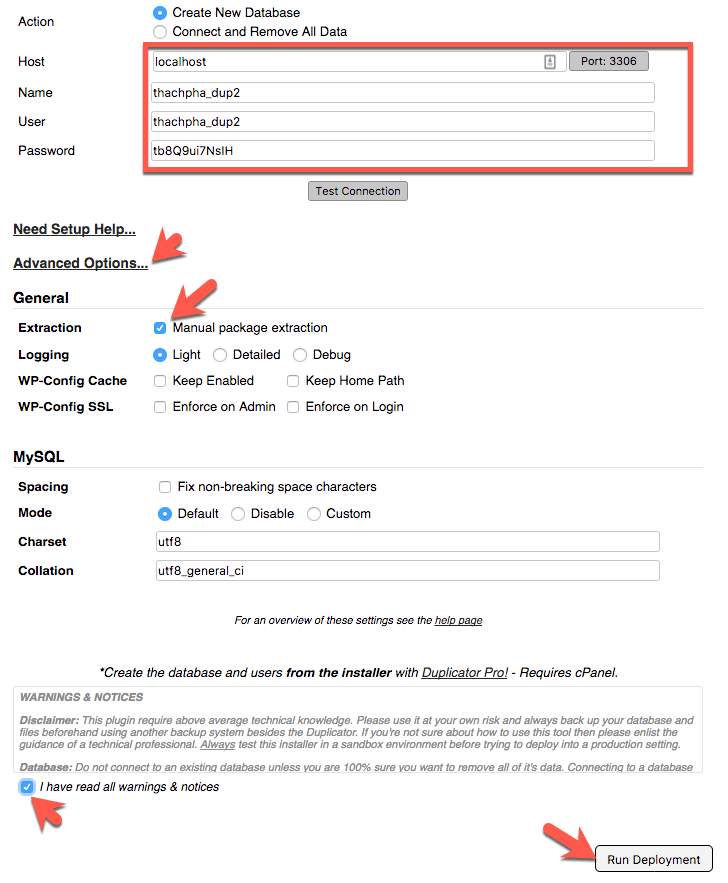
Enter your database information, you should create a new database in advance, after entering remember to click the buttonTest Connectionto verify you have entered the correct database information. Then select Advanced Options and checkManual package extraction. Finally agree to the terms and click the Run Deployment button.
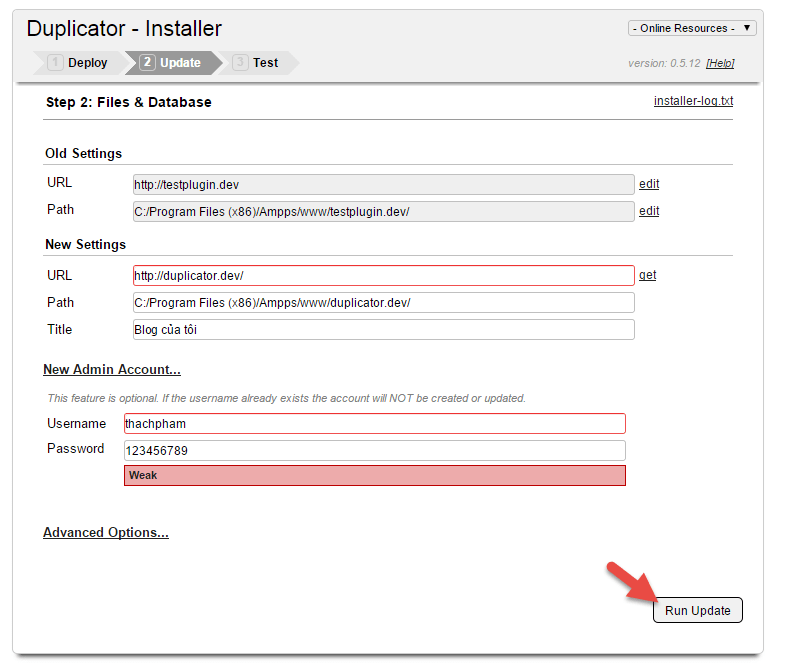
Next, it will ask you to set up the new domain name and create a new admin account for the website if desired. Usually you run the file installer.phpon whichever domain it will automatically detect the website using that domain. After confirming the information, click the buttonRun Update.
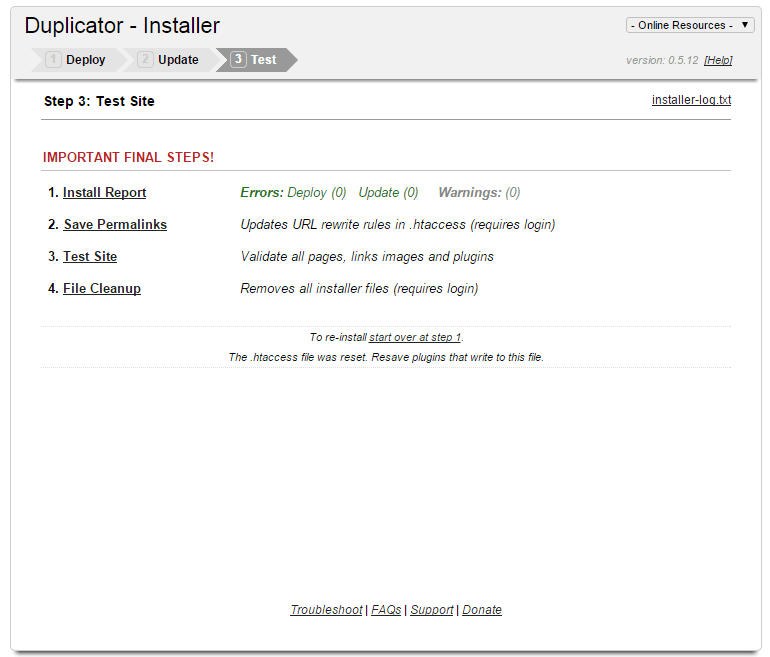
Finally, this table appears which means the data has been restored successfully.
Your data has now been transferred to the new host and is using a new domain. Here's what you need to do next:
Go to Settings -> Permalinks and click Save Changes.
Go to Duplicator -> Tools -> Cleanup -> click Delete Reserved Files to remove the backup and prevent malicious actors from running the installer.php file.
Disable the Duplicator plugin to avoid clutter.
That's it, simple right? Actually, this is a very useful plugin for me because it helps me migrate hosts faster or simply when I need to take a WordPress installation and set it up as multiple websites without needing to do many steps. So if you're not tech-savvy, need to change your WordPress domain, or migrate hosts, you can use this plugin to simplify your workflow.


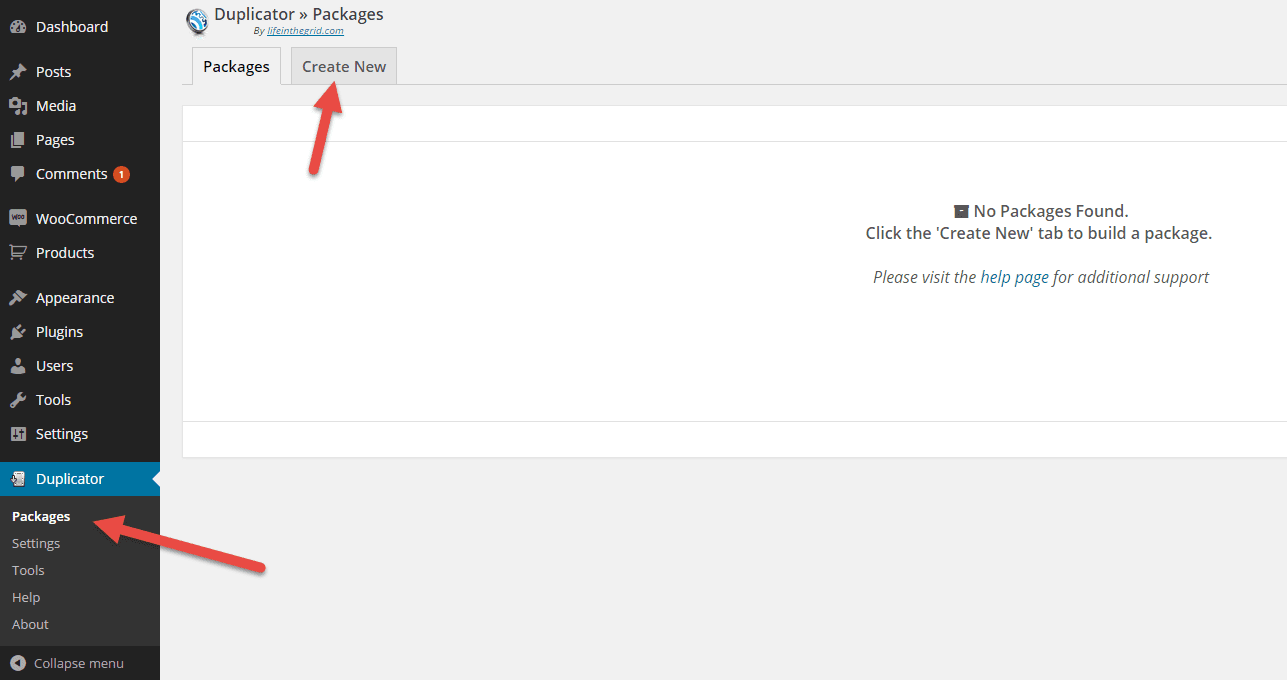 Then you can name the package if you want, or click on theArchivesection to optionally exclude some data you don't want to include if needed, otherwise just leave it as is and click Next.
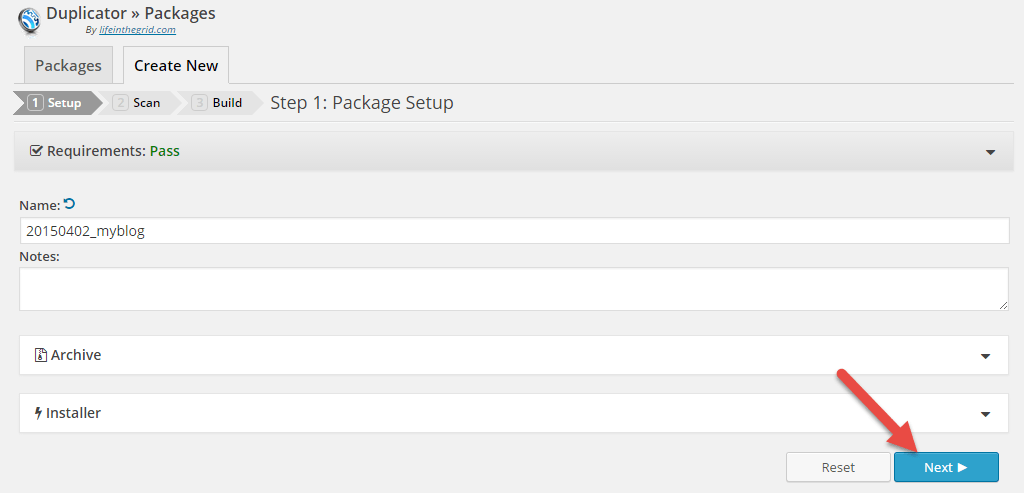 This step will scan your data to check the size and provide a detailed report on whether your configuration is suitable for exporting data, because usually if your website has a lot of data and your host is too weak, it won't work.
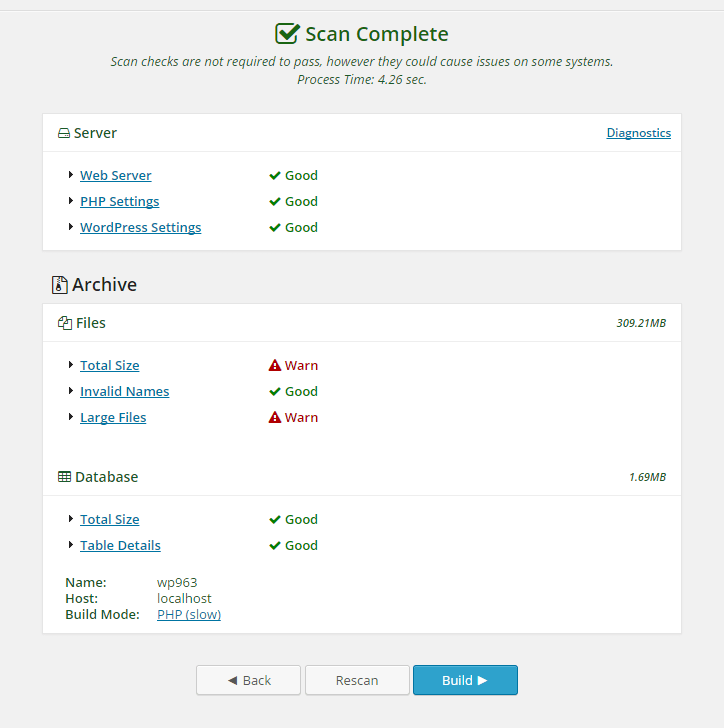 If it only shows Warning on some parts, you can still use it, it will just take a bit longer. You can click the Build button to start creating the backup package from this plugin, the waiting time can be fast or slow depending on the size of your data. After it's done, you can download the data file andinstaller.phpto your computer. The installer.php file is the file you must run when you need to restore data on another host.
 Now I need to restore this data on another host, so I will upload the .zip file (website data) and installer.php (restoration tool) to the host. Then go to the host's File Manager, find the .zip file just uploaded and select Extract.
 then run the installer.php file on your host via the pathhttp://domain/installer.php.
 Enter your database information, you should create a new database in advance, after entering remember to click the buttonTest Connectionto verify you have entered the correct database information. Then select Advanced Options and checkManual package extraction. Finally agree to the terms and click the Run Deployment button.
 Finally, this table appears which means the data has been restored successfully.
 Your data has now been transferred to the new host and is using a new domain. Here's what you need to do next: