Guide to configuring and fixing Contact Form 7 not receiving emails

Detailed guide on how to configure email in Contact Form 7 to receive notification emails when customers complete the contact form.
This article helps fix issues related to Contact Form 7 not sending emails and not receiving mail from Contact Form 7 after customers submit the form.
By default, WordPress cannot send emails on its own, which causes Contact Form 7's email feature to fail with the message: "Your message was not sent successfully. Please contact the administrator for support".
 Please read the guide to fix this:

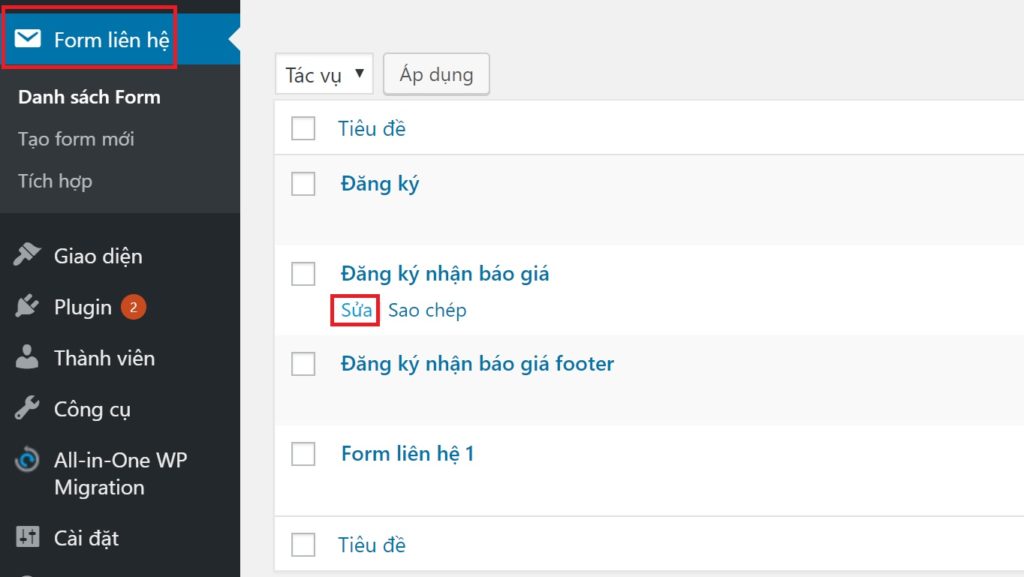 Go to the tabConfigure Email
 Check the Other Options tab; if there's a Skip email line, delete it and save
 Configure as follows:
Please read the guide to fix this:
Step 1:Configure Gmail SMTP in WordPress
This is a mandatory important step. If you don't configure step 1 correctly, the Contact Form 7 plugin won't work as intended. See this article to configure SMTP:Guide to configuring email sending on WordPress using SMTP Gmail After configuring SMTP and successfully sending a test email, proceed to step 2.Note: Some hosting providers block SMTP email sending, so you may not be able to configure it (Godaddy, A2Hosting)
Step 2:Configure email in Contact Form 7
Select the form you need to configure and click the Edit button Go to the tabConfigure Email
 Check the Other Options tab; if there's a Skip email line, delete it and save
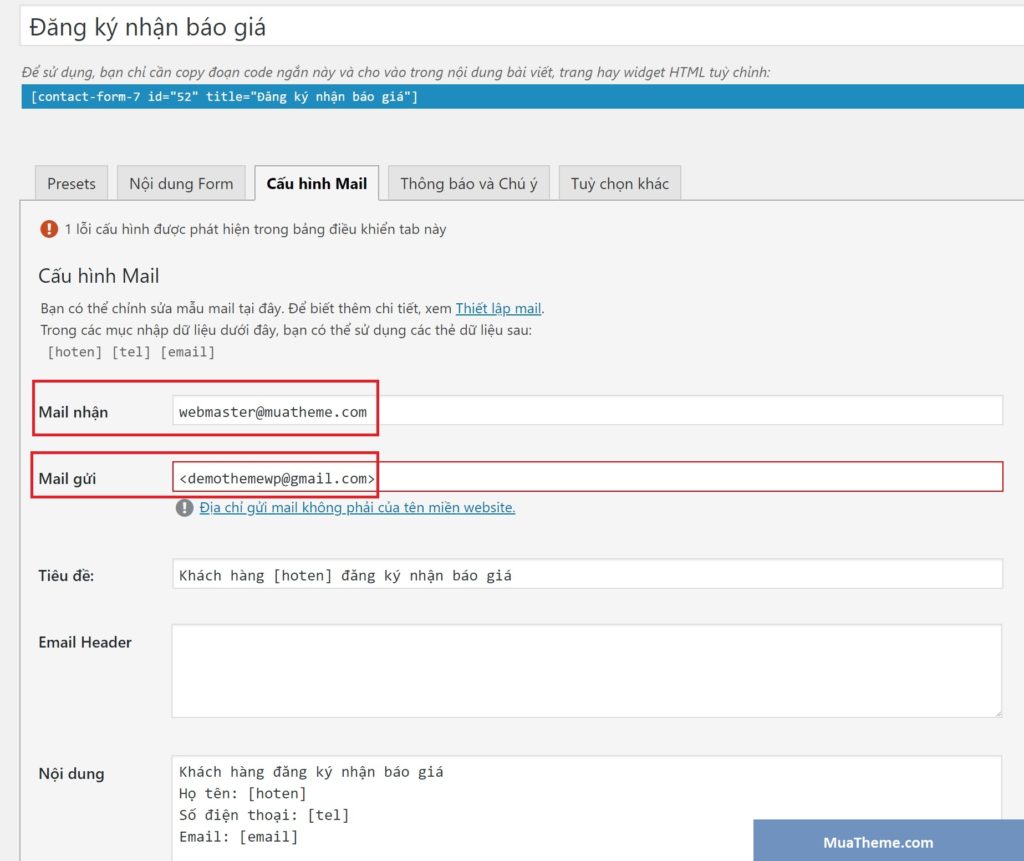
Configure as follows:
Check the Other Options tab; if there's a Skip email line, delete it and save
Configure as follows:
- Recipient email: Enter the email address where you want to receive notifications
- Sender email: Enter the email address configured with SMTP in step 1 (Contact Form 7 may report an error with the email address, but you can ignore it)