CREATE A MULTILINGUAL WORDPRESS WEBSITE WITH POLYLANG

It's been quite a while, I previously wrote a tutorial on using the qTranslate plugin to create a multilingual website, but that plugin is now updating quite slowly and contains many bugs, so I'd like to introduce another free plugin that is easier to use and has fewer bugs calledPolyLang, especially since it doesn't automatically disable when updating to a new WordPress version like qTranslate. I'd also like to remind you that a multilingual website is a feature that allows us to write more than one language on the website (for example, posts with multiple language versions that you write yourself), not an automatic content translation feature. Note
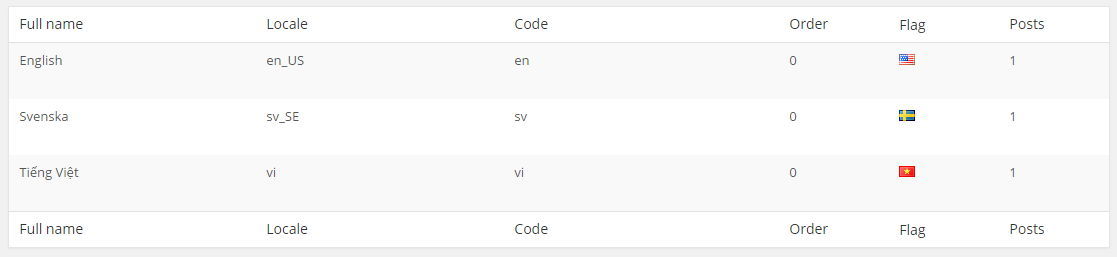
 For example, I'm adding 3 languages like this:
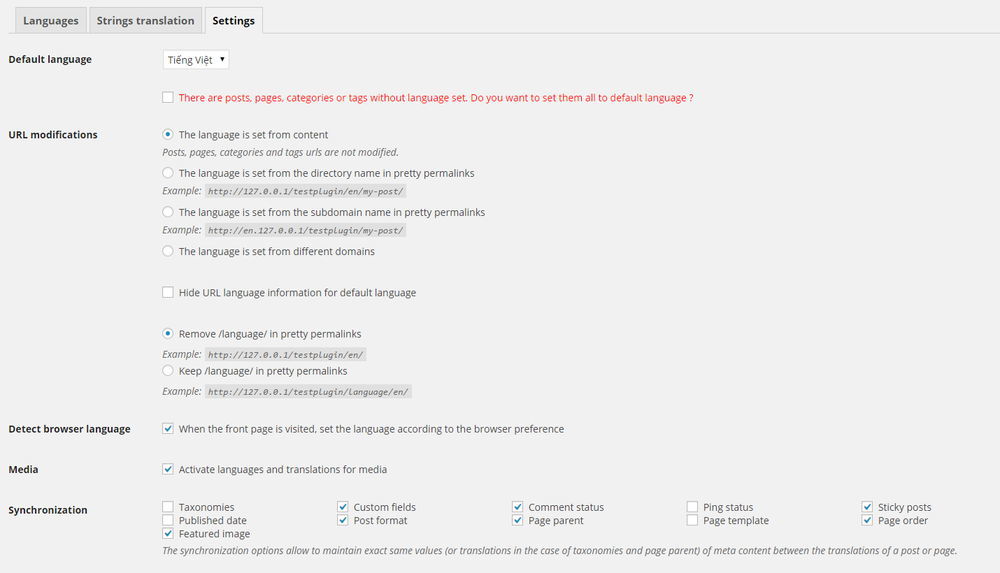
 Next, go to theStrings Translationsection to set up the website title and date/time format for each language. If you have Vietnamese, in the time format section you should set it tod/m/Yto comply with Vietnamese standards. Then go to theSettingstab, which will have several options as follows:
 Or if you want to insert this language switcher yourself at any position in your theme, you can use the following function:
Where$argsis an array of parameters as follows (if not set, default values will be applied)
 If you want it to display horizontally, add the following to your theme's style.css:
 Now create different menus and enter the corresponding language and select the appropriate location.
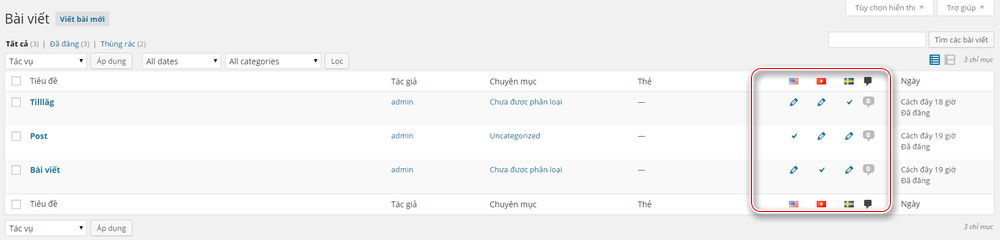 There are 2 icons with the following meanings:
 – This post is for the language corresponding to its column.
 – Points to the post corresponding to its language.
 – This post does not have the corresponding language; click to create. Example:
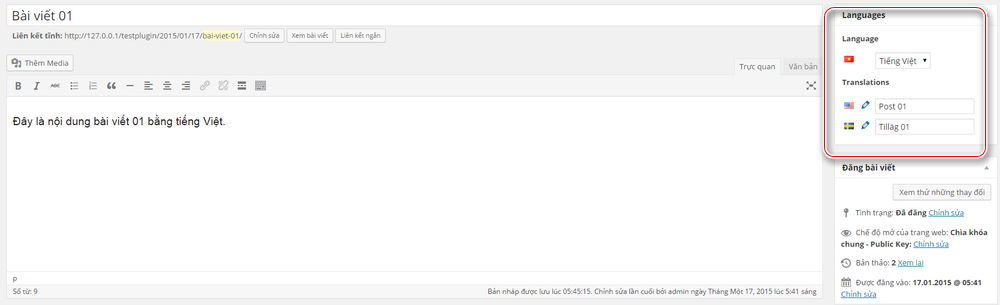
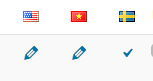 This means this post is the Swedish version; clicking the iconwill lead to the edit page for the other two languages. When creating a new post, you will see a language selection section in the Languages column and enter the post name for the other languages. It's best to create different posts corresponding to each language, then reopen each post and enter its name in the other language version.
 For Pages, it's the same.
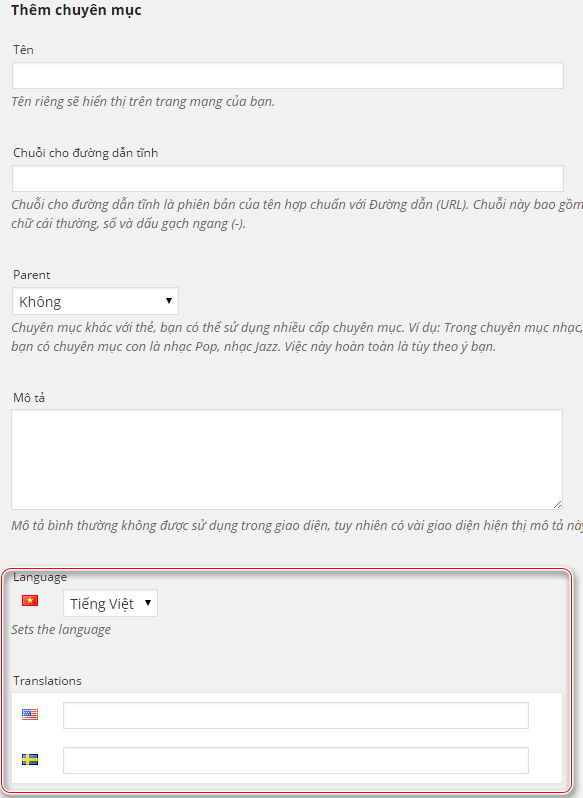
 As shown above, it's actually one category but with 3 different languages. You can set this up when editing or creating a category.
 When creating a new post, the category list will display corresponding to the language you set for that post, not all categories, so don't worry about it getting messy. The same applies to tags.
- Before using, I recommend youinstall Vietnamese for WordPressif Vietnamese is among the languages you need to use, so it can support Vietnamese phrases most completely in WordPress.
- This plugin only supports customizing multiple languages with content you enter. For phrases in themes and plugins, if you want to translate them you must manually translate them into multiple different language files,see the guide to translate themes & plugins yourself.
Install PolyLang
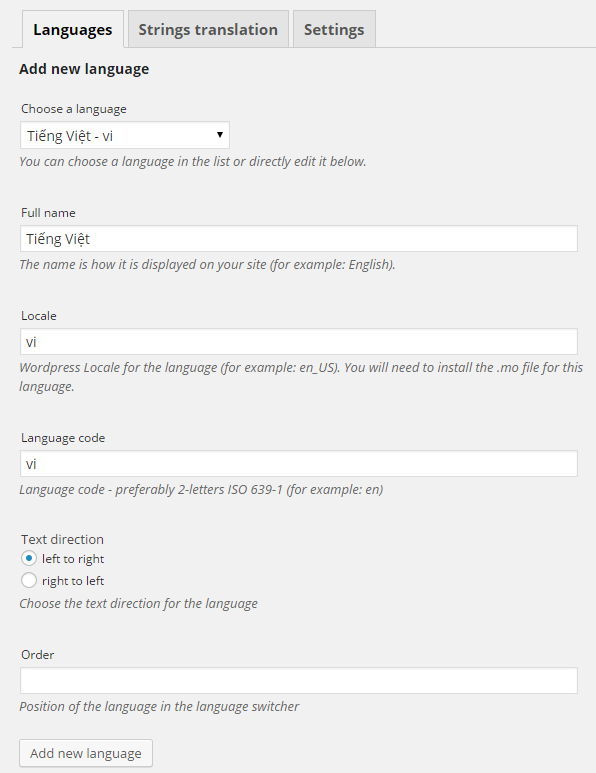
Sau khi Install pluginPolyLang installed, you need to go toSettings -> Languagesto set up the languages you want to use. Now add the languages you want to use on your website one by one (add all of them, including Vietnamese if you've already translated WordPress). In theAdd New Languagesection, you just need to select the language name and it will set up automatically for you, so leave everything as is.
For example, I'm adding 3 languages like this:
Next, go to theStrings Translationsection to set up the website title and date/time format for each language. If you have Vietnamese, in the time format section you should set it tod/m/Yto comply with Vietnamese standards. Then go to theSettingstab, which will have several options as follows:
- Default Language:Default language on the website. If you see the red line below, it means you have posts, pages, categories and tags that haven't been assigned a language. Check this to apply the default language to them.
- URL Modifications: Use language structure for each language version on the website. I recommend you choose "The language is set from the directory name in pretty permalinks" to use URLs like http://domain.com/en/post-name.
- Hide URL language information for default language: Hide the language identifier in the URL for the default language. For example, if you choose Vietnamese, the Vietnamese version URL will not have /vi/ in it.
- Remove /language/ in pretty permalinks: Remove the /language/ part from the URL. (recommended to select)
- Keep /language/ in pretty permalinks: Keep the /language/ part in the URL.
- Detect browser language: If you check this, the website will switch to the language that matches your browser language.
- Media: If checked, you can add separate image versions for each language.
- Synchronization: If you want some sections to have the same value across all languages, check this. For example, if you check Custom field, it will use one custom field value for all language versions.
Display language switcher button on the interface
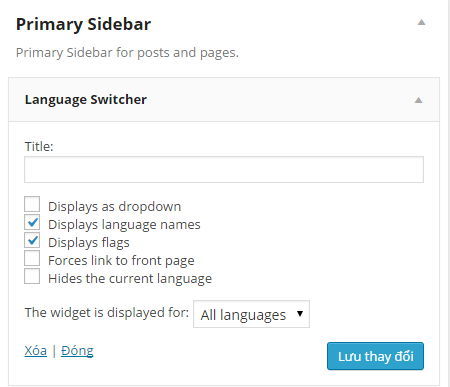
To display language switcher buttons, you can go toAppearance -> Widgetto add a widget namedLanguage Switcher, where you can choose to display the name and flag of each language, or use a dropdown style as you prefer.
Or if you want to insert this language switcher yourself at any position in your theme, you can use the following function:
|
01 |
pll_the_languages($args); |
‘dropdown’=> Display as dropdown, set the value to 1 to make it a dropdown (default: 0)‘show_names’=> Display language name; if value is 1, it will show the language name (default: 1)‘display_names_as’=> Display language name by "name" or "slug" (default: 'name')‘show_flags’=> Display flag if value is 1 (default: 0)‘hide_if_empty’=> Hide languages if that language has no corresponding post or page; value 1 hides it (default: 1)‘force_home’=> Use homepage URL if value is 1; if value is 0, it will switch the current page to the selected language (default: 0)‘echo’=> echoes if set to 1, returns a string if set to 0 (default: 1)‘hide_if_no_translation’=> Hide language if that language has no translated values (default: 0)‘hide_current’=> Hide the currently selected language if value is 1 (default: 0)‘post_id’=> If this value is set, that language section will point to a specific post or page via ID (default: null)‘raw’=> If you want to customize CSS for this section, set the value to 1 (default: 0)
|
01
02
03
04
05
06 |
pll_the_languages( array( 'show_flags' => 0, 'dropdown' => 1)); |
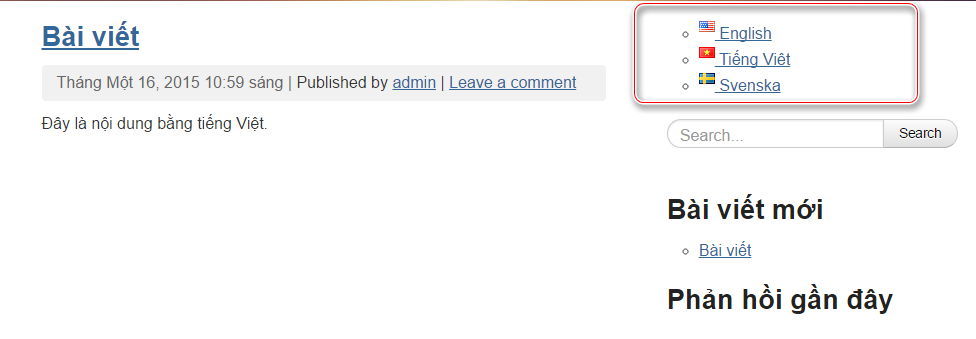
If you want it to display horizontally, add the following to your theme's style.css:
|
01
02
03
04
05
06
07
08 |
.widget_polylang li { float: left; margin-right: 1em; list-style: none;}.widget_polylang li img { margin: 8px 0px 8px 0;} |
Set up multilingual menu
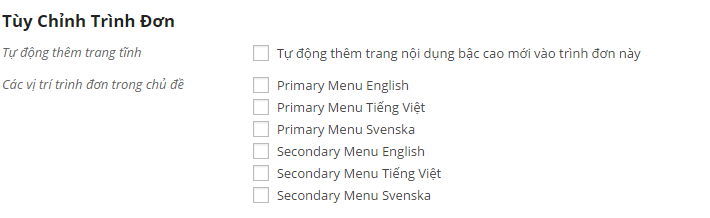
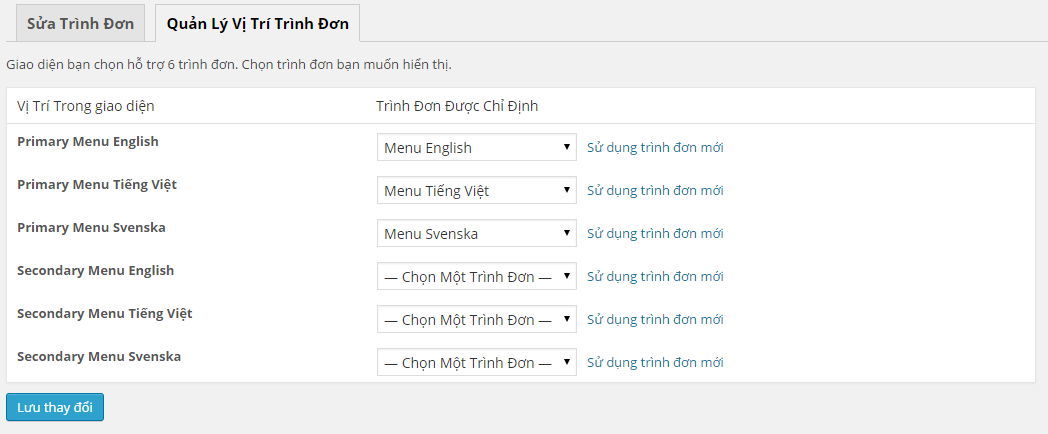
The great thing about Polylang is that it supports a menu location that can display separately for each language. When you go toAppearance -> Menusyou will see a menu location that supports each language like this:
Now create different menus and enter the corresponding language and select the appropriate location.
Set up multilingual Posts and Pages
Before working, you need to understand the mechanism of creating a post in multiple languages: each language will be a separate post, but when set up, this post will only display in the corresponding language. When you go to Posts -> All Posts, you will see an additional language column like this:
There are 2 icons with the following meanings:
– This post is for the language corresponding to its column.
– Points to the post corresponding to its language.
– This post does not have the corresponding language; click to create. Example:
This means this post is the Swedish version; clicking the iconwill lead to the edit page for the other two languages. When creating a new post, you will see a language selection section in the Languages column and enter the post name for the other languages. It's best to create different posts corresponding to each language, then reopen each post and enter its name in the other language version.
For Pages, it's the same.
Set up multilingual Categories & Tags
For categories and tags, it works the same as posts—you'll create multiple categories and point them to language versions for each category.
As shown above, it's actually one category but with 3 different languages. You can set this up when editing or creating a category.
When creating a new post, the category list will display corresponding to the language you set for that post, not all categories, so don't worry about it getting messy. The same applies to tags.
Multilingual with themes and plugins
PolyLang cannot help you translate phrases within themes and plugins into multiple languages, but it can load language files appropriate to the selected language for display. This means if you want your plugins and theme to display the correct language across different languages, your theme and plugins must have .mo language files on the host so it can load them. If you don't know how to translate a theme, check out myguide to translating themes and plugins yourselfPlease note that for your theme to find the corresponding language file, look in the theme's functions.php file for the sectionload_theme_textdomainto see which directory it loads language files from and place your language files in that directory.