[WOOCOMMERCE] WOOCOMMERCE TEMPLATE STRUCTURE
![[WOOCOMMERCE] WOOCOMMERCE TEMPLATE STRUCTURE](https://bestcareco.com/uploads/_thumbs/hero/2026/10/lo-hong-nghiem-trong-cua-plugin-wordpress-noi-tieng-woocomme-c2d4db.jpg.webp)
If you are someone who doesn't understand PHP or HTML/CSS language, you can skip this section because I'll be honest that you won't be able to do anything in the template without knowing these things. But if you already have that knowledge and need a way to customize WooCommerce display on your website, you can refer to it to be able to customize the WooCommerce interface correctly, without losing it when updating the version.
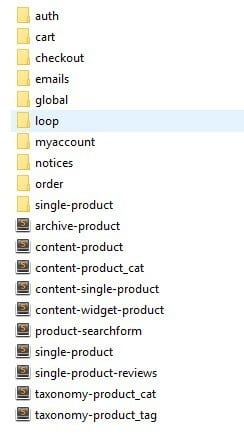 If you don't yet understand the meaning of the files and folders inside, here's my explanation:
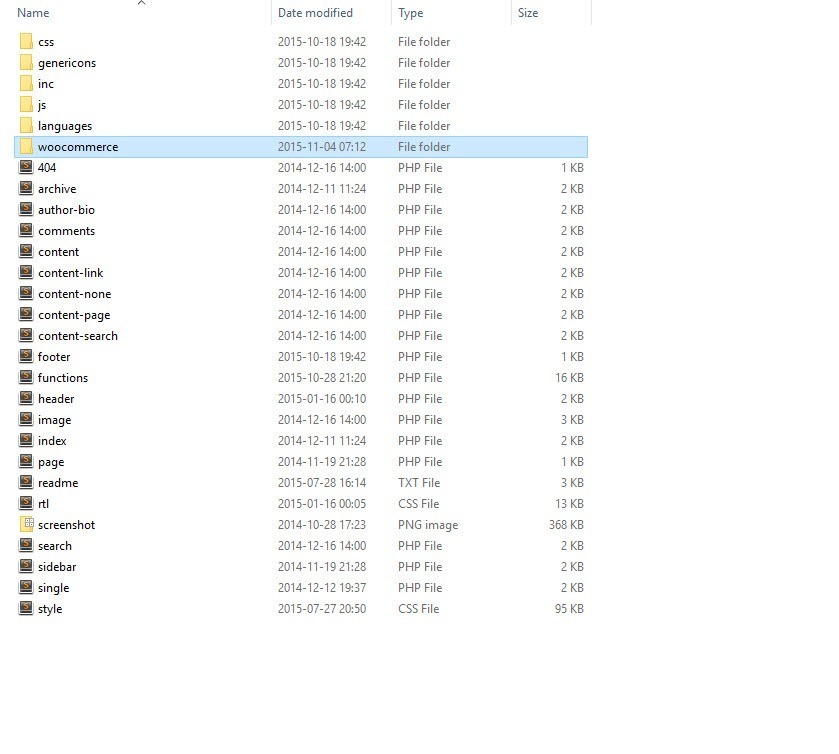 And now, the templates will use the files inside the theme instead of loading from the plugin, so whenever you need to customize or change anything, just edit the template in the theme folder.
It only has that one section with no additional code for us to customize. But if you take the time to read, they have commented very clearly on the lines
This means the function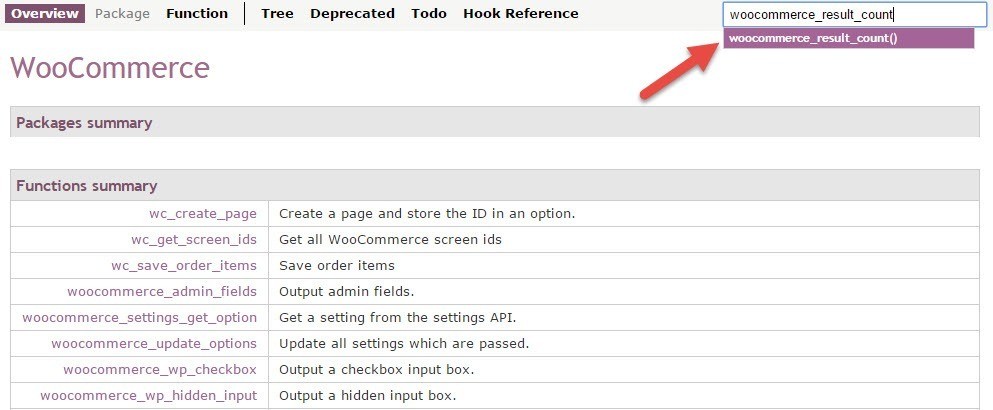 After finding it, you'll see which Package it belongs to in the documentation, and importantly, which file declares it (Located at).
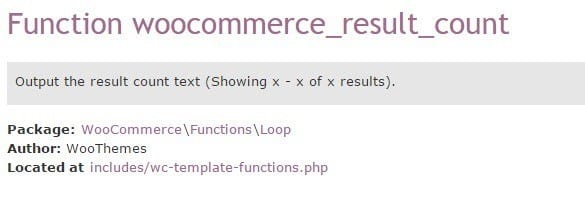 Click on the Located at link, and you'll be able to see the code that declares it.
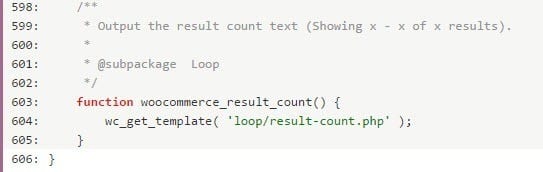 Looking at the code, we can easily understand that this function will display the templateloop/result-count.phpin the template directory because the function
Learn About Woocommerce Templates
Woocommerce templates are template files that set up how it displays on your website. For example, when you view a product, everything you see is displayed by the template that Woocommerce has pre-configured. And naturally, if we want to change how those sections are displayed, we proceed to edit the template. Woocommerce's default templates are stored in the directory/wp-content/plugins/woocommerce/templates/and all files in it are display templates, everything is there.
Woocommerce Template List
- auth/– Not sure?
- cart/– Template files related to cart display
- cart-empty.php– Display empty cart.
- cart-item-data.php– Display product variations in the cart.
- cart-shipping.php– Display shipping method selection area in the cart.
- cart-total.php– Display cart totals box.
- cart.php– Display the entire cart.
- cross-sell.php– Display cross-sell products.
- mini-cart.php– Display mini cart in widget.
- process-to-checkout-button.php– Checkout page button. Yet it's also made into a template.
- shipping-calculator.php– Display shipping fee calculation box in the cart.
- checkout/– Template files displaying the checkout section.
- cart-errors.php– Display cart page error.
- form-billing.php– Display customer billing information input forms.
- form-checkout.php– Structure the entire checkout form page.
- form-coupon.php– Display coupon code input form.
- form-login.php– Display login form.
- form-pay.php– Display payment section, including cart summary and payment method selection.
- form-shipping.php– Display shipping address input frame.
- payment-method.php– Display payment method selection button.
- payment.php– Display payment methods information and order button.
- review-order.php– Display invoice review section.
- thankyou.php– Display thank you page after payment completion.
- emails/– WooCommerce notification email templates.
- plain/– Plain text email template.
- admin-cancelled-order.php– Email content notifying admin of cancelled order.
- admin-new-order.php– Email content notifying admin of new order.
- customer-completed-order.php– Email content notifying customer of completed order.
- customer-invoice.php– Email content notifying customer of invoice.
- customer-new-account.php– Email content notifying customer of new account information.
- customer-note.php– Email content notifying customer of new note added to invoice.
- customer-processing-order.php– Email content notifying customer of order processing.
- customer-refunded-order.php– Email content notifying customer of refunded order.
- customer-reset-password.php– Email content notifying customer of password reset.
- email-addresses.php– Address display section in email.
- email-footer.php– Footer display section in email.
- email-order-items.php– Order products display section in email.
- email-styles.php– Email CSS.
- global/– Templates displaying components across all WooCommerce pages.
- breadcrumb.php– Display navigation bar.
- form-login.php– Display login form.
- quantity-input.php– Display quantity selection field.
- sidebar.php– Display WooCommerce sidebar.
- wrapper-end.php– Display closing element of page structure wrapper.
- wrapper-start.php– Display opening element of page structure wrapper.
- loop/– All elements in WooCommerce product display loop.
- add-to-cart.php– Add to cart button.
- loop-end.php– Loop end element, only contains the <ul> tag in it.
- loop-start.php– Loop start element.
- no-product-found.php– No products found message.
- order.php– Product display sorting type frame.
- pagination.php– Display pagination section.
- price.php– Display price.
- rating.php– Display product rating.
- result-count.php– Display result count.
- sale-flash.php– Display SALE label on products when they are discounted.
- title.php– Display product title.
- myaccount/ – Account section templates in WooCommerce.
- form-add-payment-method.php– Add payment method page form.
- form-edit-account.php– Account edit form.
- form-edit-address.php– Email edit form.
- form-login.php– Login form.
- form-lost-password.php– Forgot password form.
- my-account.php– My Account page template.
- my-address.php– My Address page template.
- my-downloads.php– Downloadable products section template.
- my-orders.php– My Orders section template.
- view-order.php– Order details page template in account section.
- notices/– Notification templates.
- error.php– Error notification.
- notice.php– Notification.
- success.php– Success notification.
- order/– Order display templates.
- form-tracking.php– Order tracking form.
- order-again.php– Order reset section display.
- order-details-customer.php– Customer details display in order.
- order-details-item.php– Product details display in order.
- order-details.php– Order details information display.
- tracking.php– Order tracking page display.
- single-product/– Templates displaying elements on product details page.
- add-to-cart/– Templates displaying add to cart button on product details page.
- exernal.php– Add to cart button for external linked products.
- grouped.php– Add to cart button for grouped products.
- simple.php– Add to cart button for simple products.
- variable.php– Add to cart button for products with variants.
- tabs/– Templates displaying tab content in product information.
- additonal-information.php– Tab displaying additional product information.
- description.php– Tab displaying product description.
- tabs.php– Tab structure.
- meta.php– Product meta information display such as category, keywords, etc.
- price.php– Display price.
- product-attributes.php– Product attributes display.
- product-image.php– Product image display.
- product-thumbnails.php– Product gallery images display.
- rating.php– Star rating section display.
- related.php– Related products section display.
- review.php– Customer reviews list display.
- sale-flash.php– Display sale badge label.
- share.php– Display product sharing section on social media.
- short-description.php– Display short description section.
- title.php– Display title.
- up-sells.php– Display upsell products.
- add-to-cart/– Templates displaying add to cart button on product details page.
- archive-product.php– Template displaying product archive page structure.
- content-product.php– Template displaying product content structure called from archive-product.php.
- content-product_cat.php– Template displaying product content structure in category.
- content-single-product.php– Template displaying product content structure on single product detail page.
- content-widget-product.php– Product content display structure in widget.
- product-searchform.php– Product search form display structure.
- single-product-reviews.php– Customer review list display structure on product detail page.
- single-product.php– Single product detail page display structure.
- taxonomy-product_cat.php– Product category page display structure.
- taxonomy-product_tag.php– Product keyword page display structure.
Safe way to customize Woocommerce templates
As you can see, the default templates will be located in the plugin folder and you can also edit directly there, but they will be lost and revert to default when you update to a new Woocommerce version. Therefore, to customize templates without losing changes, you need to copy the folder/wp-content/plugins/woocommerce/templatesto your current theme folder, then rename the templates folder in the theme folder to woocommerce. If you still don't understand after hearing this, watch the video.
Copy templates folder from plugin to theme and rename it to woocommerce
How to read Woocommerce templates
When customizing Woocommerce templates, besides the pure PHP code snippets that are quite easy to understand in the subfolders within templates, there are also some hook declarations that many of you may not understand. For example, when I open the templatearchive-product.phpI see the following section:|
01
02
03
04
05
06
07
08
09 |
<?php /** * woocommerce_before_shop_loop hook * * @hooked woocommerce_result_count - 20 * @hooked woocommerce_catalog_ordering - 30 */ do_action( 'woocommerce_before_shop_loop' ); ?> |
@hooked, which means it declares which functions are hooked into this action. Action hooks are created by functionsdo_action()which we can easily see in the code above creates the hookwoocommerce_before_shop_loopright at that location. And the comments above are the functions being hooked into this action. For example:
|
01
02 |
* @hooked woocommerce_result_count - 20* @hooked woocommerce_catalog_ordering - 30 |
woocommerce_result_count()is hooked into this action with priority order 20. And to find where that function is declared, the quickest way is to search at https://docs.woothemes.com/wc-apidocs/, for example I'll search for the functionwoocommerce_result_count.
After finding it, you'll see which Package it belongs to in the documentation, and importantly, which file declares it (Located at).
Click on the Located at link, and you'll be able to see the code that declares it.
Looking at the code, we can easily understand that this function will display the templateloop/result-count.phpin the template directory because the functionwc_get_template()is used to load Woocommerce templates, and it will prioritize template files in the theme directory. So, now we can deduce that if we want to modify the content of this function, we go to the templates directory/loop/result-count.php, and that's it. Handle other files similarly; whenever you encounter a functionwc_get_template()just understand that it calls a file in that template directory. Actually, I wrote this guide for those who already have PHP programming knowledge and use HTML/CSS, so I won't write more details. The rest of the customization is up to you. In the next article, I'll go over some action hooks and filter hooks of Woocommerce so we can work more easily.