Therefore, in this article, I will detail some reasons why WordPress websites load slowly based on all my experience so you can better optimize your website yourself.
REASONS WHY WORDPRESS WEBSITE LOADS SLOWLY
Hosting/Server Configuration
This is probably the first reason to mention when a WordPress website loads slowly. On the server side, there are 2 main causes:
Insufficient Configuration
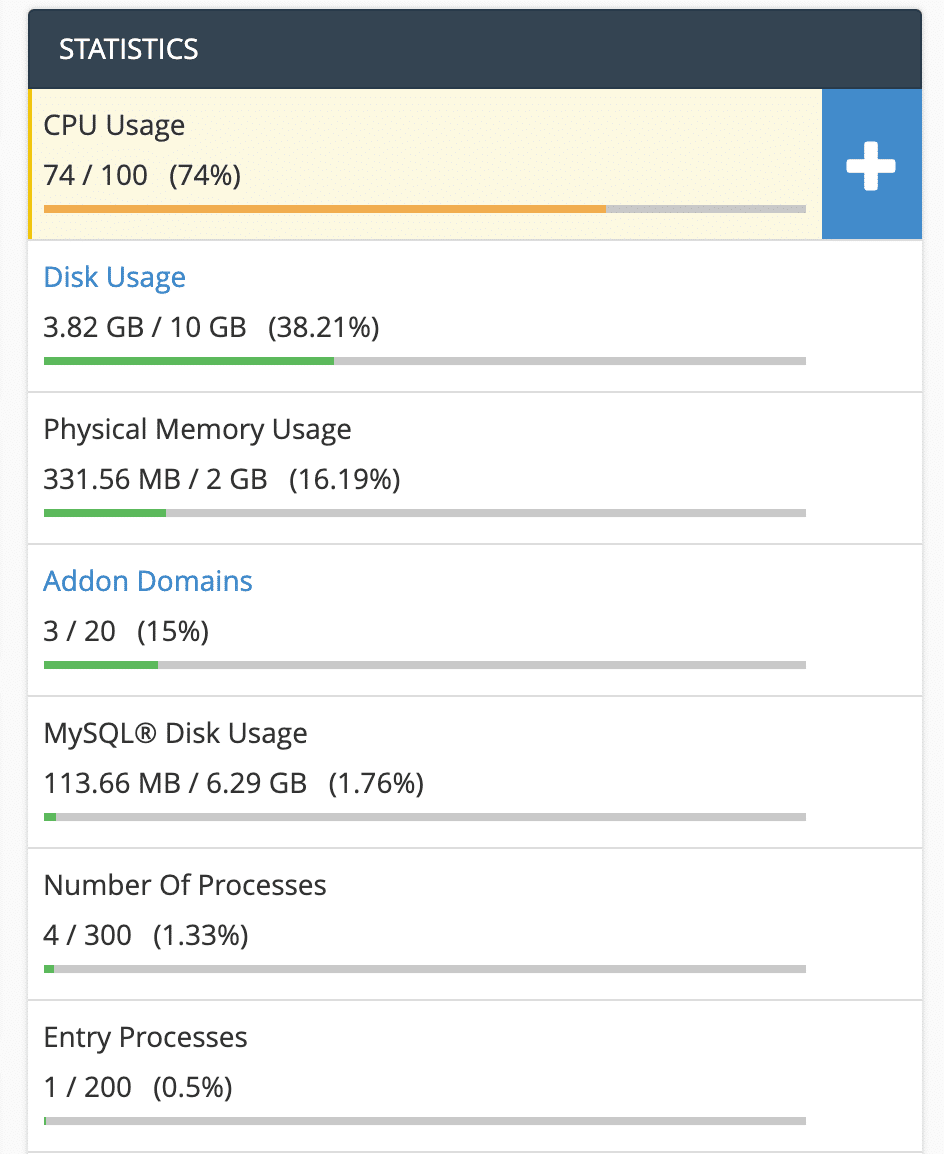
We all need to understand that each website will have different server resource usage capabilities. Suppose your website requires more resources than normal (e-commerce site, or websites using many complex features), then you will now need a higher Hosting/Server configuration than usual so all features on the website run smoothly, because typically the website will load processes in order, and if just one process loads slowly, the entire website load time will be affected. For Shared Hosting using cPanel, one way to know if the configuration is insufficient is to go to cPanel and check the CPU/Physical Memory statistics in the right column. If you see it showing orange or bright red like this, your website has used too many resources.
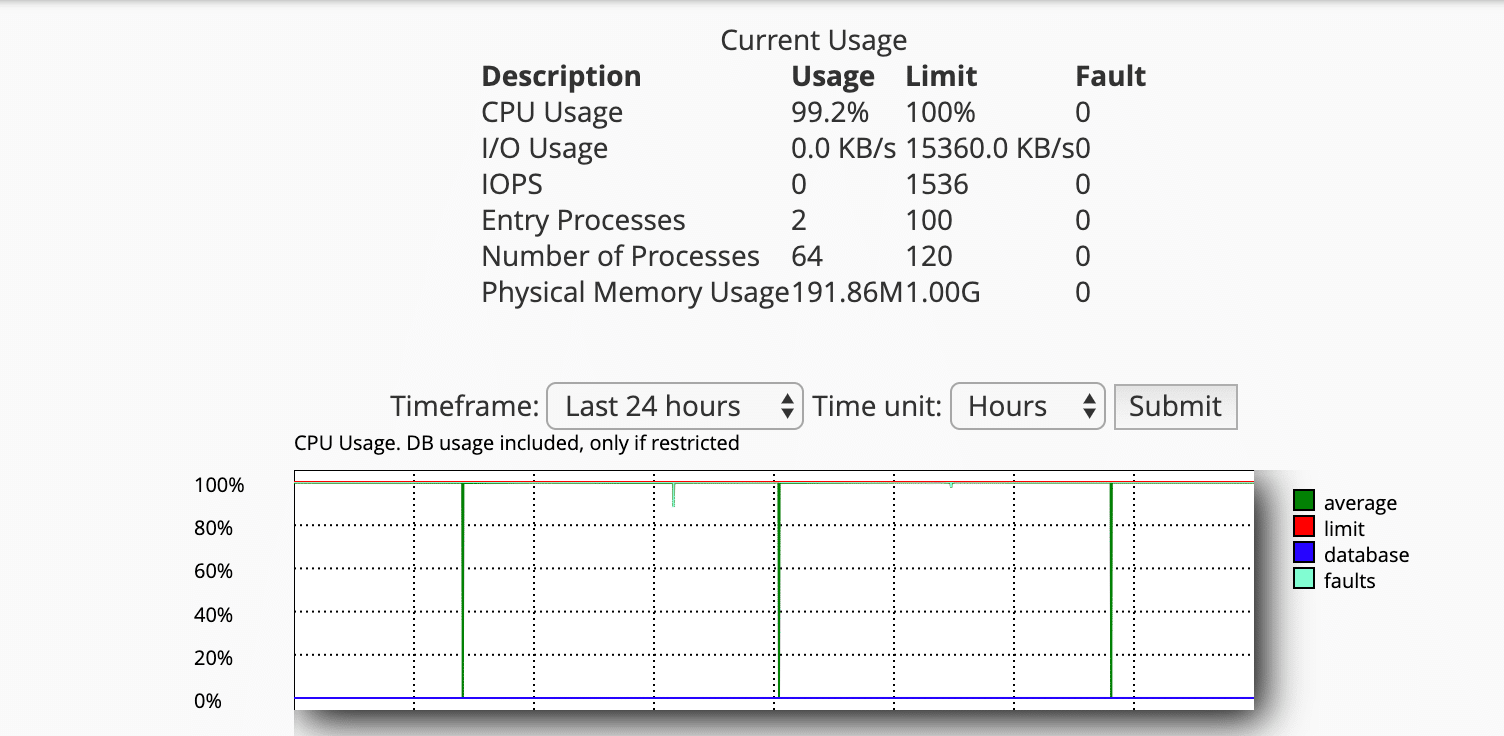
You can also go to the CPU and Concurrent Connection Usage section to review the history of times your hosting package exceeded resources.
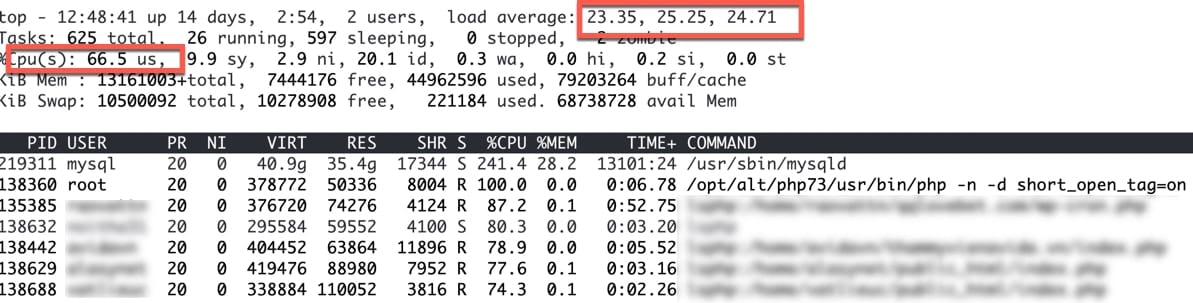
For those using VPS or a dedicated server where you have SSH access to the server, you can use the commandtop -cto see CPU status and processes consuming CPU:
Since each website has different loading conditions, I cannot advise you on the exact configuration you need. Therefore, you can read through this entire article and try all the methods below, and if your website still needs many resources to process, upgrade to a higher plan.
Server Error
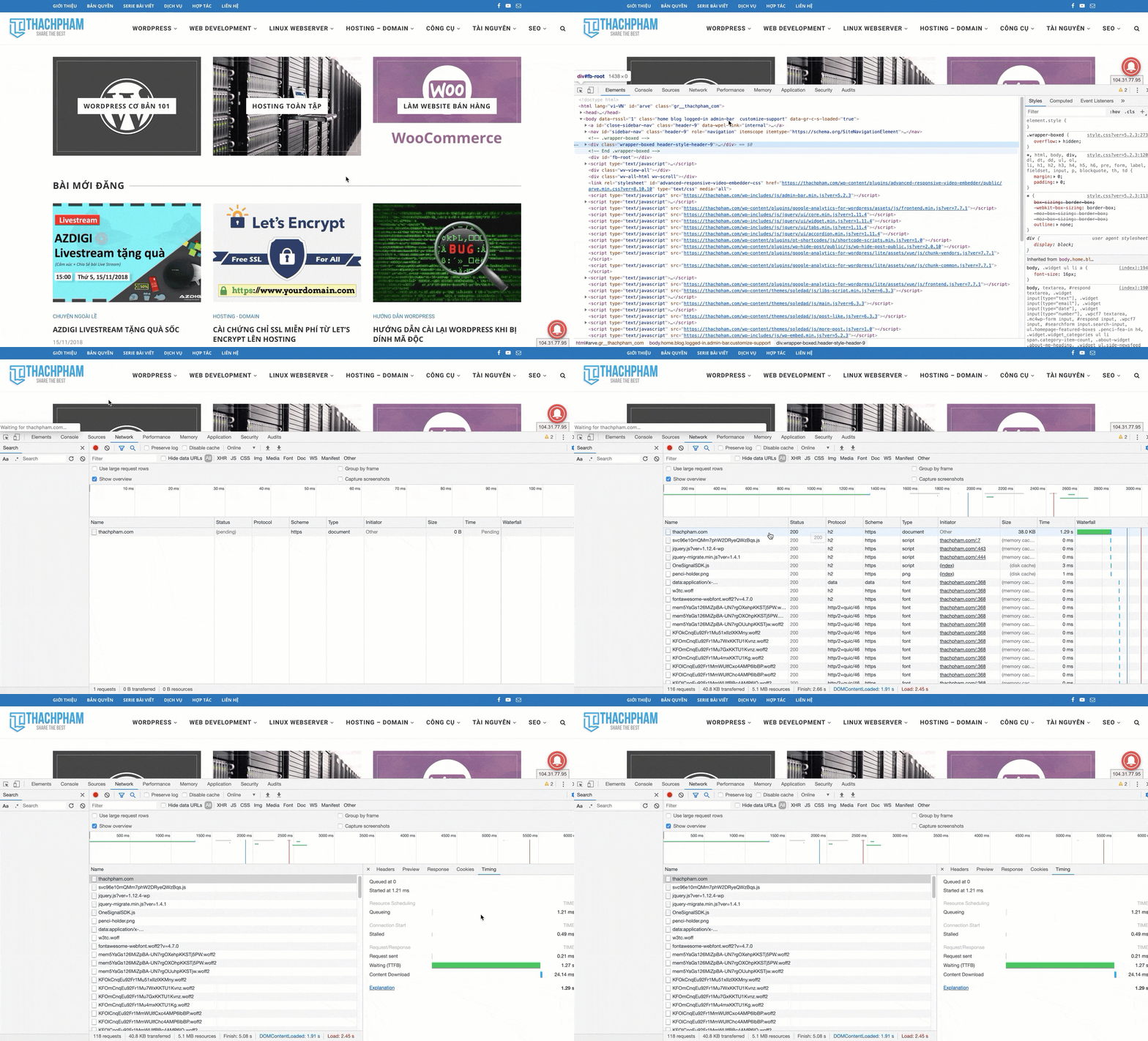
Although quite rare, this is still a cause of sudden website slowdown with no clear reason. Usually with Shared Hosting servers, you can go to cPanel => Server Information to check the server load status to see if it's overloaded, or there may be an issue from the provider. Usually if there's a server issue, the Time To First Bytes (TTFB) when loading the page will be very high (around 5 seconds or more if using a domestic provider's service, or for international services, it can also happen during cable cuts). To see the TTFB time when loading the page, you can open Google Chrome browser and access your website, then right-click on the page and select Inspect, then find the slowest loading link to see TTFB as shown in the image below.
Slow Loading from External Links
If your website uses many external links such as Facebook embeds, Tawk.to, PushCrew, etc., this is also a cause of website slowdown because if the network speed of visitors to these links is slow, it will also increase your website's load time. Therefore, you should limit the use of external service codes, only use them for truly necessary services or embed them separately on an appropriate page.
SOME WAYS TO FIX SLOW LOADING WORDPRESS WEBSITE
Limit Using Multiple Plugins
Each plugin installed on your website will increase resource consumption to varying degrees depending on the plugin type, so you should limit using plugins that are not truly necessary or unused. Especially some plugins you should consider using such as:
Google XML SitemapsSitemap: You can use the Yoast SEO plugin to set up without needing a separate plugin for it. Because when the sitemap updates, if you have many pages, the server will need quite a lot of resources to update the sitemap file.
Security plugins: WordPress security, while complex, is also simple, so you don't need to use multiple different security plugins but should only use one. The plugin I recommend using is iThemes Security because it has all the necessary features to secure your WordPress website.
Auto-linking plugins for keywords in postsSome users want to increase the number of internal links on their website, so they use auto-linking plugins to link keywords in posts to tags, categories, or other posts. This is unnecessary because overusing these plugins will make your posts full of links and look unprofessional. You can do this manually or use the Internal Link Manager plugin to auto-link only the keywords you want to specific pages.
Use caching on your website
Every website should have caching. There are many different caching techniques for WordPress, but every website should have HTML Cache to minimize server resource usage. If you're not very familiar with the technique, you can use the WP Super Cache or LiteSpeed Cache plugin (with hosts that support LSCache like AZDIGI) to create cache for your website, so your website has already saved a considerable amount of resources.
Compress images before uploading to your website
This is a very common mistake made by some users: uploading an unoptimized original image that weighs tens of MB to the website. This means when users load the page, their browser will load tens of MB of images not including other elements, which takes at least 5 seconds. For regular websites that don't need pixel-perfect image sharpness, you should only reduce the size to a maximum of 1100px for the width. Additionally, you can install the Smush Image Optimization, Compression, and Lazy Load plugin to support automatic image compression when uploading to your website, helping reduce image file size to the lowest level while maintaining quality.
Reduce WP Cron execution frequency
Every WordPress website has its own cronjobs built directly into the source code to execute repetitive tasks such as checking for new versions, deleting comments in trash, or some features that plugins/themes have. One characteristic of WP Cron using many resources is that the wp-cron.php file always runs with high CPU usage, which you can only see when viewing with the commandtopon your Linux server.
To see all crons in your WordPress website, you can use the WP Control plugin. Then if you see that there are only unnecessary crons, you can disable WP Cron by inserting this code into the wp-config.php file:
define(‘DISABLE_WP_CRON’, true);
Then create a cronjob in your Hosting/Server to run periodically 2 times a day as follows:
Besides wp-cron.php, there is another file that consumes CPU just as much: the /wp-admin/admin-ajax.php file. Usually this file will be very active when you use WooCommerce or plugins that use WordPress Heartbeat API. If you see that your admin-ajax.php file is processing continuously, this is when you need to control the execution frequency of this file again. The simplest way is to use the Heartbeat Control plugin to disable the Heartbeat API if you think your website doesn't need it, or reduce the execution frequency of this file.
Clean up the database, especially the wp_options table
Anyone who is a programmer will certainly be familiar with the fact that all data in thewp_optiontable in WordPress will be loaded all at once for each website load. This means if you check the database and see that this table has a large size, you should review and optimize it. I have a fairly detailed article about thishere.
Use PHP version 7 or higher
PHP versions older than 7.2 will be discontinued by November 2019, meaning there will be no updates or support from PHP. Therefore, you should use PHP 7.2 for your website now, partly for security, and more importantly, PHP 7.2 has much faster processing speed compared to PHP 5.6 and earlier versions. If you can use PHP 7.3, that's even better.
Reference: How to upgrade to PHP 7 using Shared Hosting with cPanel
CONCLUSION
The above are just some simple ways that anyone can do to optimize their website to make it faster by saving server resources. For some other advanced methods, I will mention in another article in more detail. Besides this article, I also have some other articles related to speeding up WordPress websites that you can refer to below.